


Context
Microsoft is interested in designing a new solution to better support project management workflows across the Microsoft 365 ecosystem.
Solution
A Teams app that leverages the Graph API and Copilot to transform chat and meeting data into actionable work items that users can save directly to Azure DevOps within Microsoft Teams.
Microsoft Align: From conversation to execution, powered by Copilot
A Teams app that turns meetings and chats into Azure DevOps work items in real time, ensuring seamless alignment across teams.
Context
Saas
B2C Product
B2B Product
Desktop Application
Role
Software Engineer
UX Designer
Team
1 Product Manager
1 UX Researcher
Timeline
May 2025 - May 2026
Overview
Over the year-long industry-sponsored project, I worked as a Design Engineer and Product Designer under the mentorship of the Microsoft Azure Design team, where I designed and built a new Copilot-powered application for Microsoft Teams.
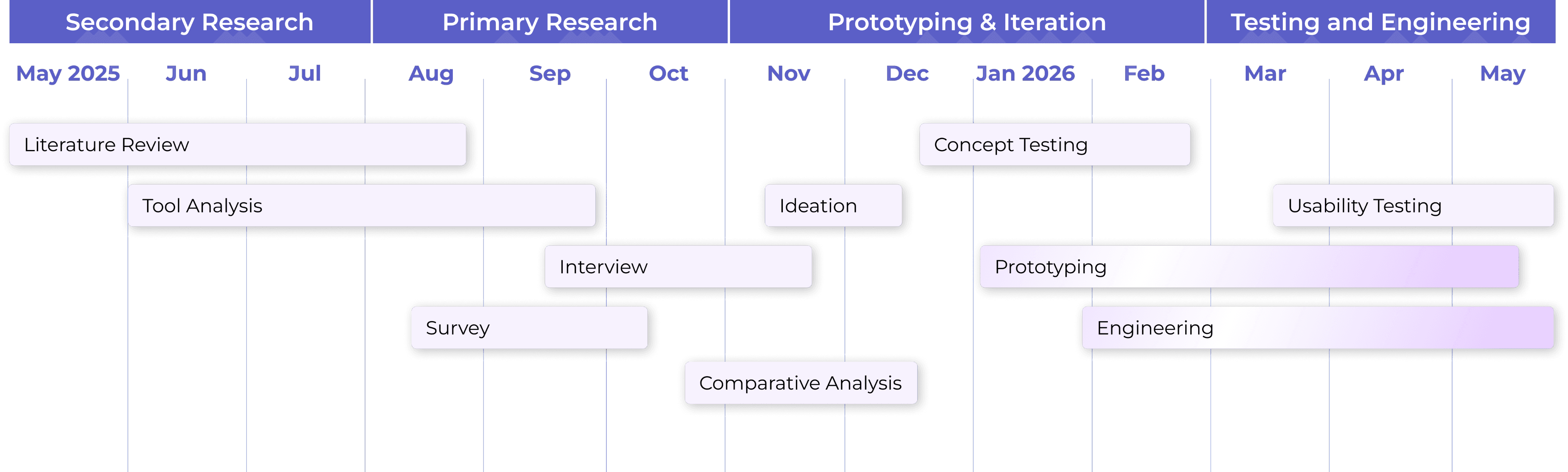
My Contribution

Problem Statement


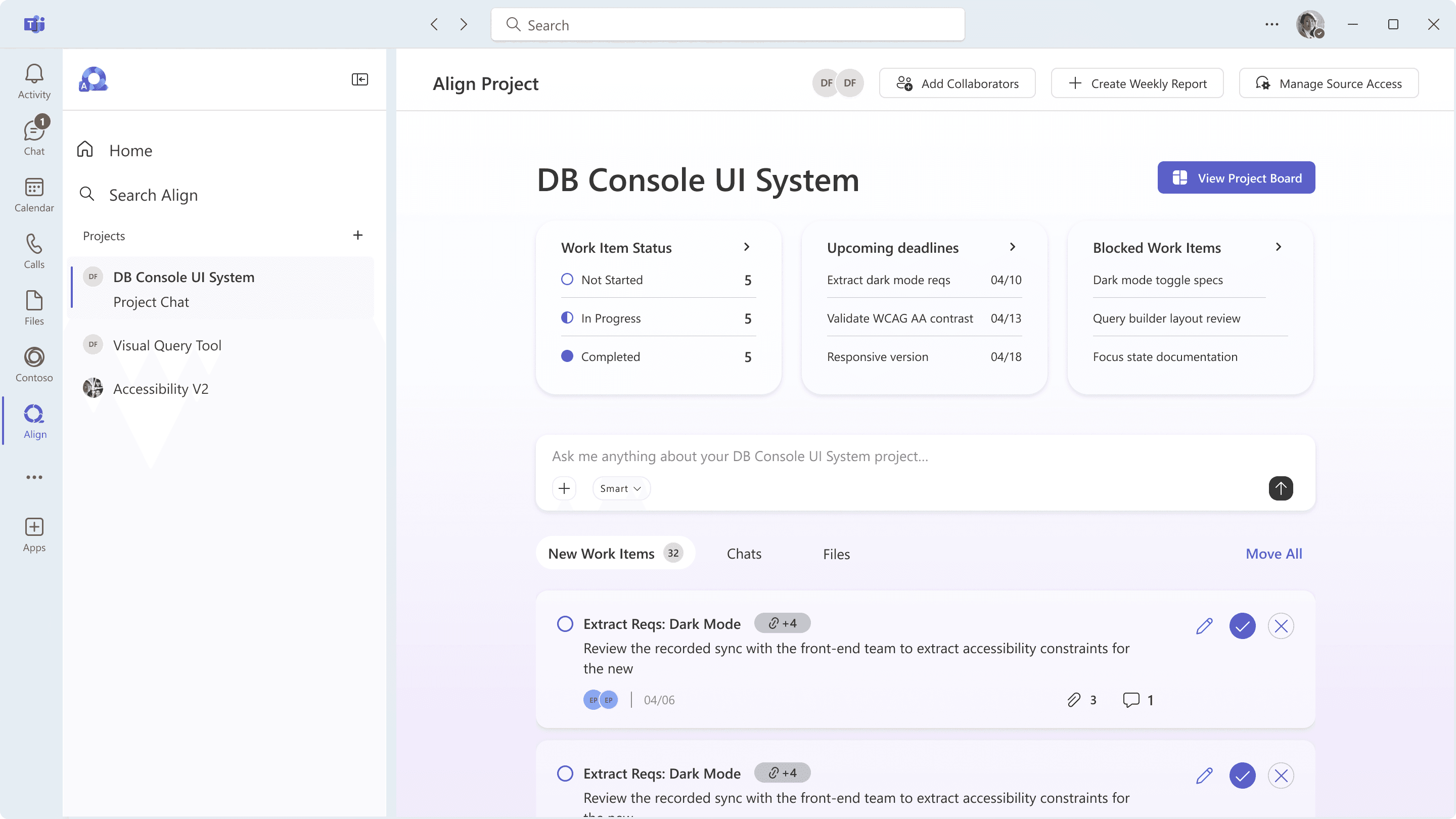
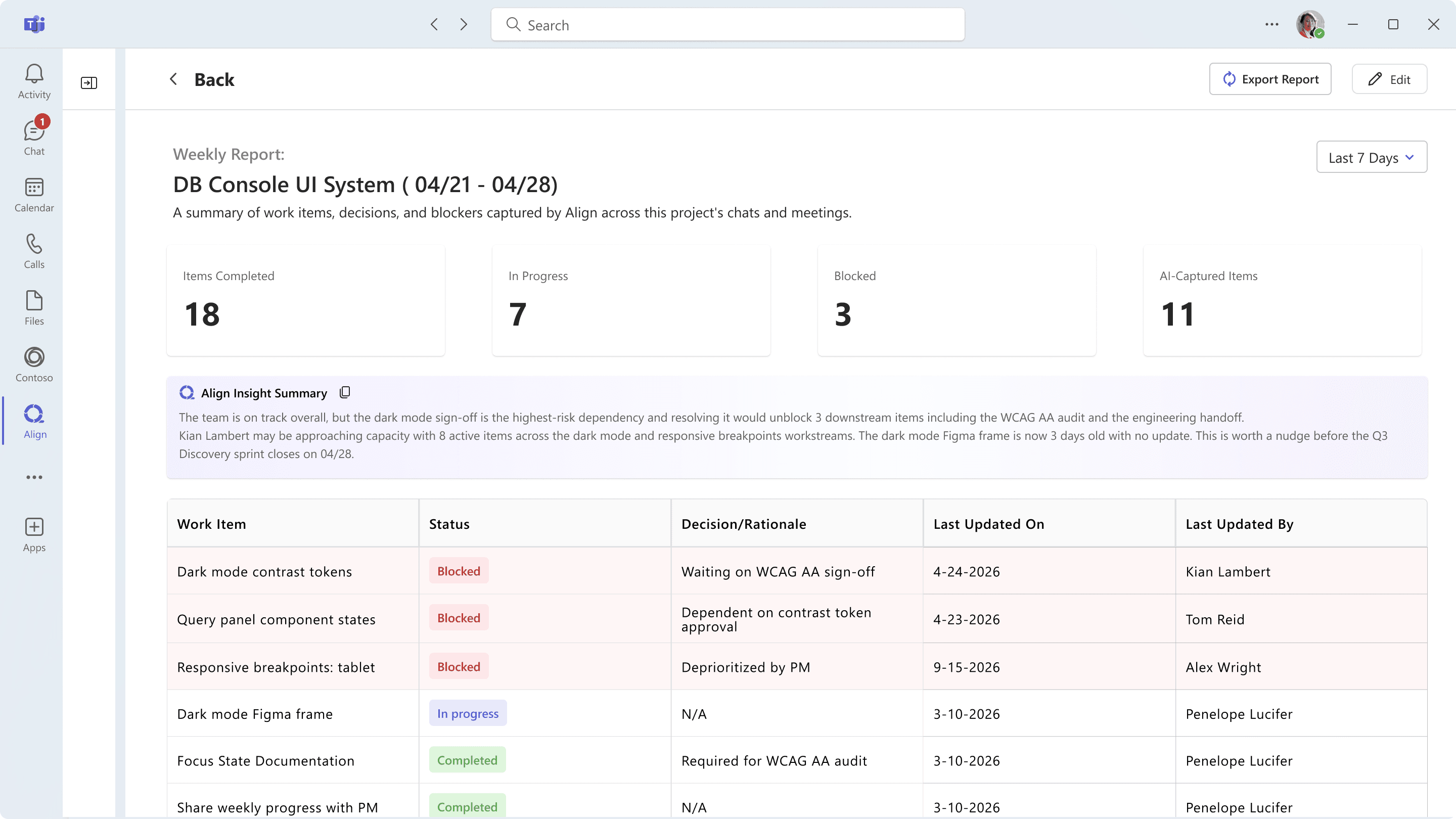
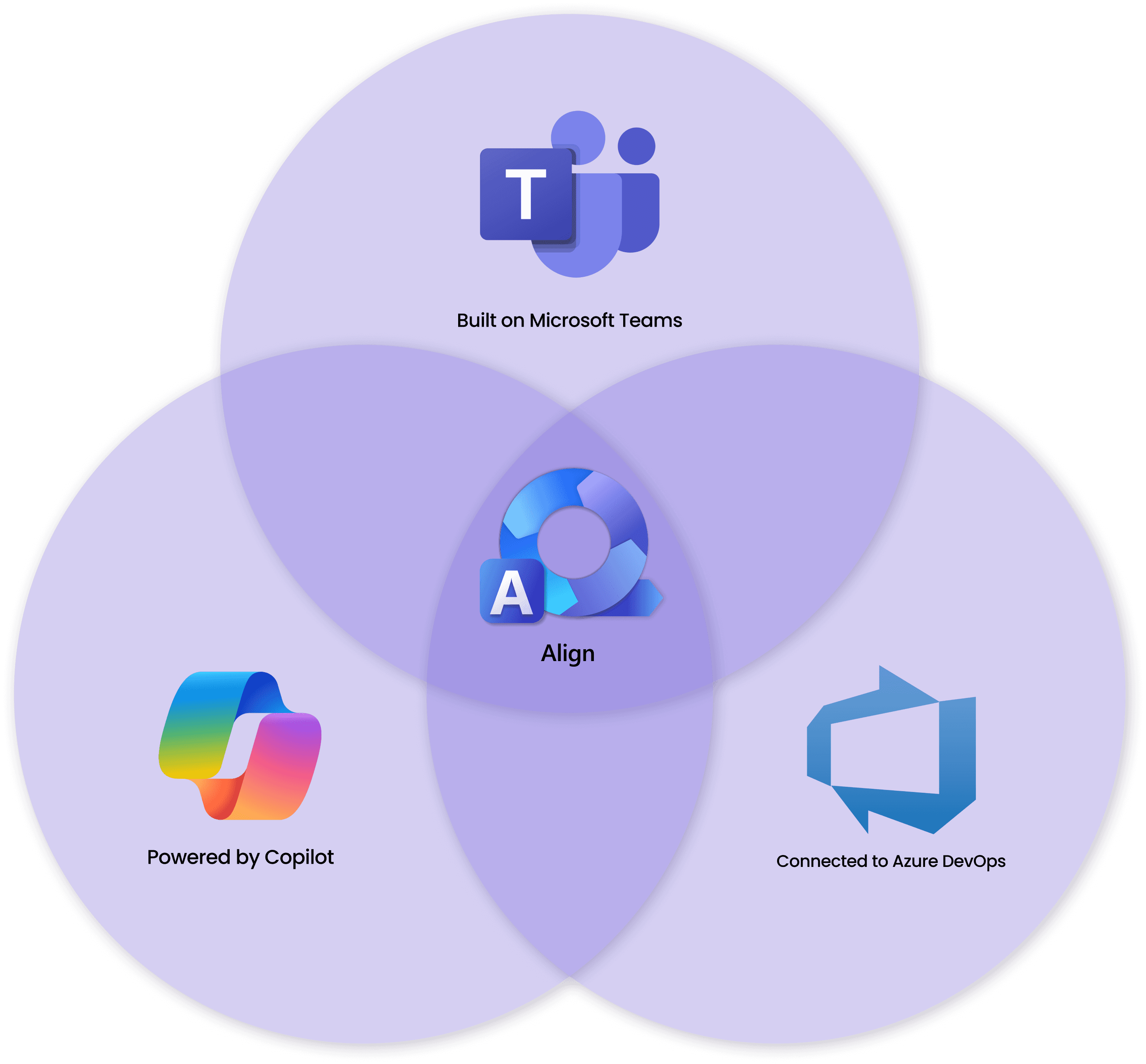
Align is a Microsoft Teams app that users can add to their workspace.
Powered by Copilot, it suggests work items based on meetings and chats and organizes them into projects.
By leveraging the Microsoft Graph API, Align enables users to seamlessly send suggested work items directly to Azure DevOps.
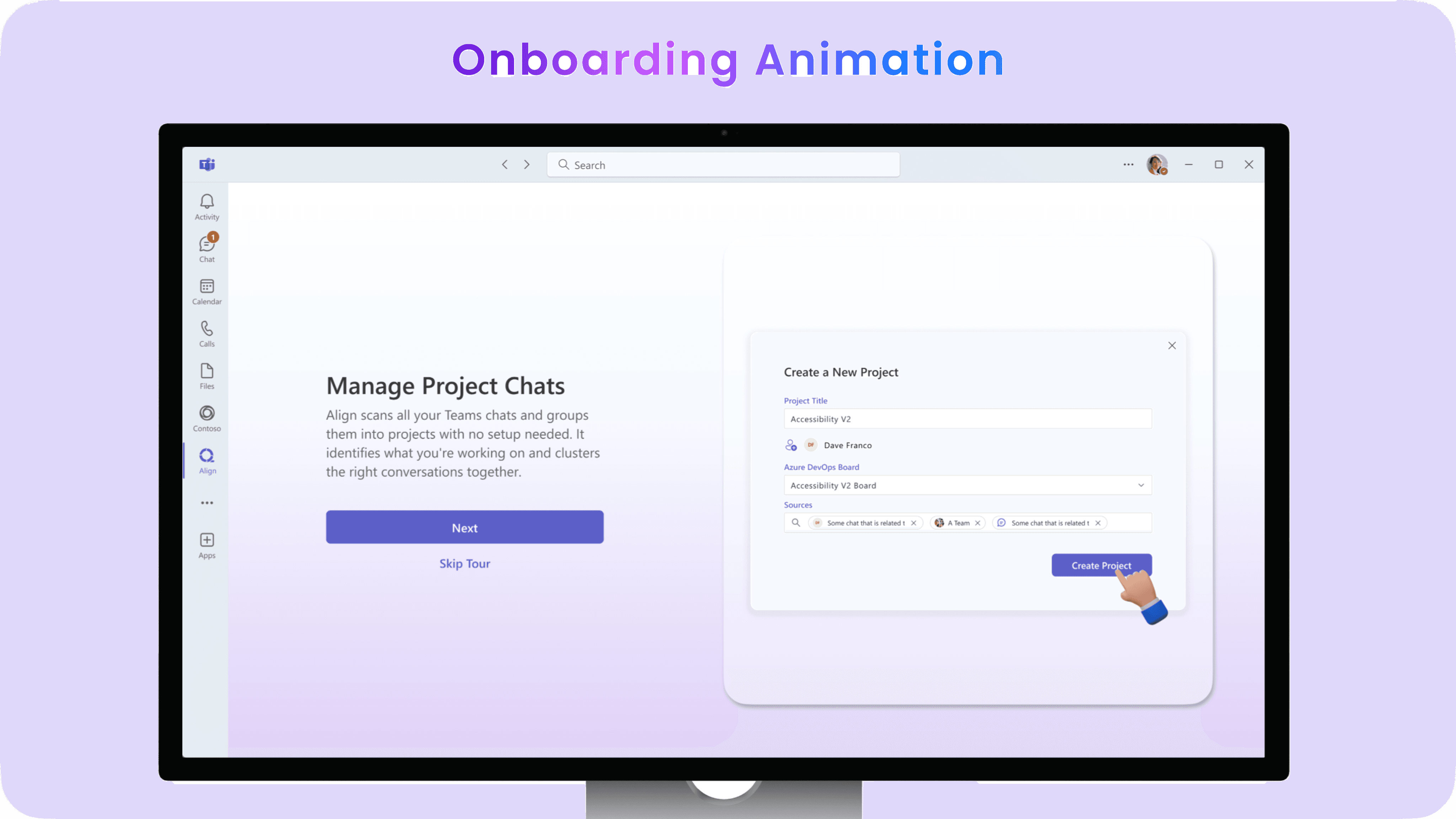
When users first add Align to their workspace, they are guided through a short onboarding animation that highlights its core capabilities in three key steps:
Identify Projects from Ongoing Conversations
Once added to Teams, Align analyzes chats within the user’s Teams workspace and groups conversations into projects based on keywords, titles, participants, and files.

Transforming Key Communication into Work Items

Align then identifies key information from messages and files and transforms it into work items that users can save to the project home in Align or sync directly to their Azure DevOps workspace.
Access Align Anywhere—from Chat Threads to Meetings
Users can also use Align in ongoing meetings or any Teams chat thread to receive real-time support and generate work items.

Matching Existing Projects with Chat and Meeting Data

After onboarding, Align analyzes the user’s Teams workspace and recommends existing projects created by other Align users that the user can request access to.
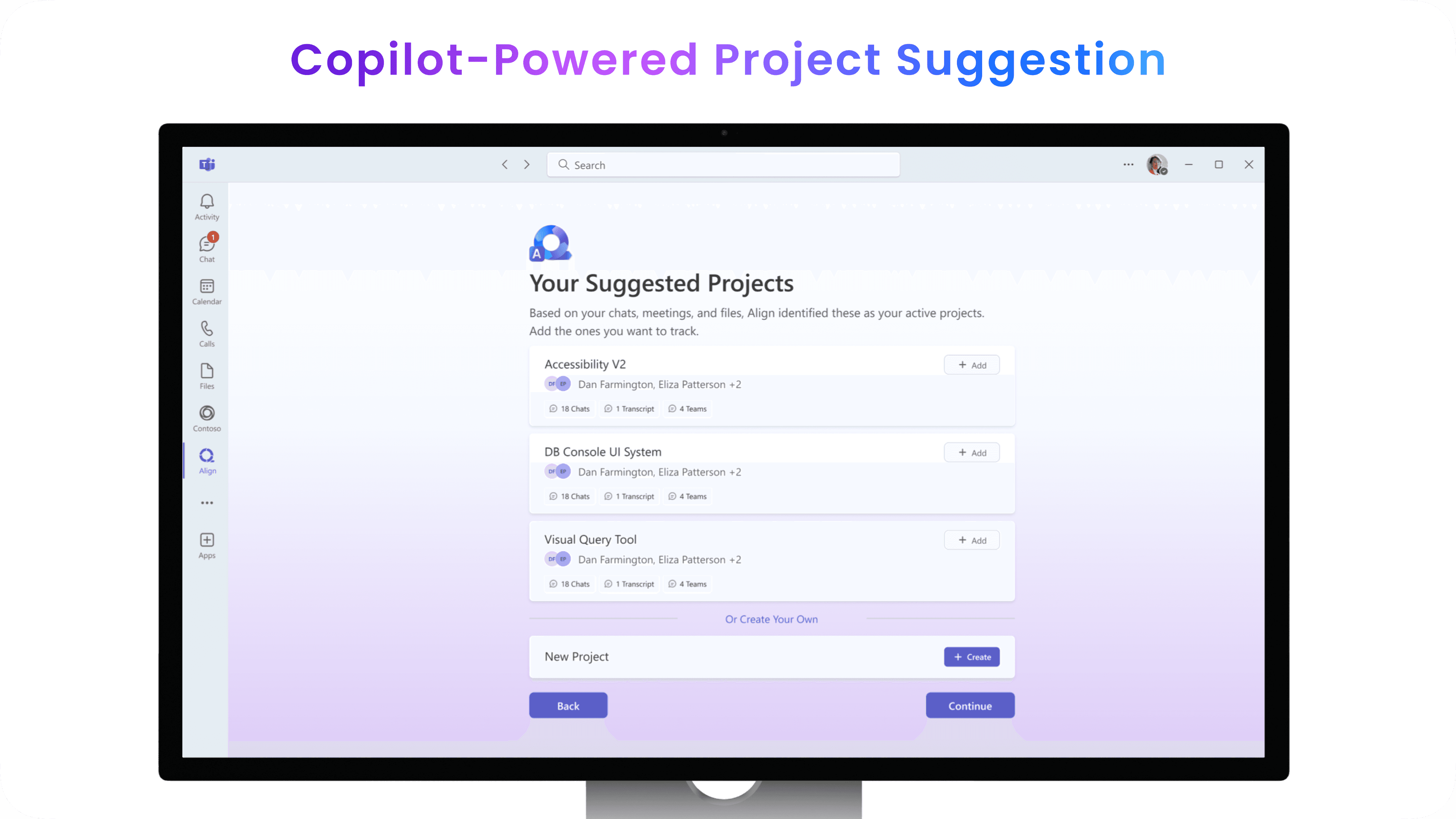
Smart Project Suggestions & Manual Project Creation
Then, Align suggests new projects that users can add directly to their workspace, or they can create a project manually.
Once users complete the setup flow, they are taken to the project home page of the first project in their Align workspace.

Project Home with Copilot Features

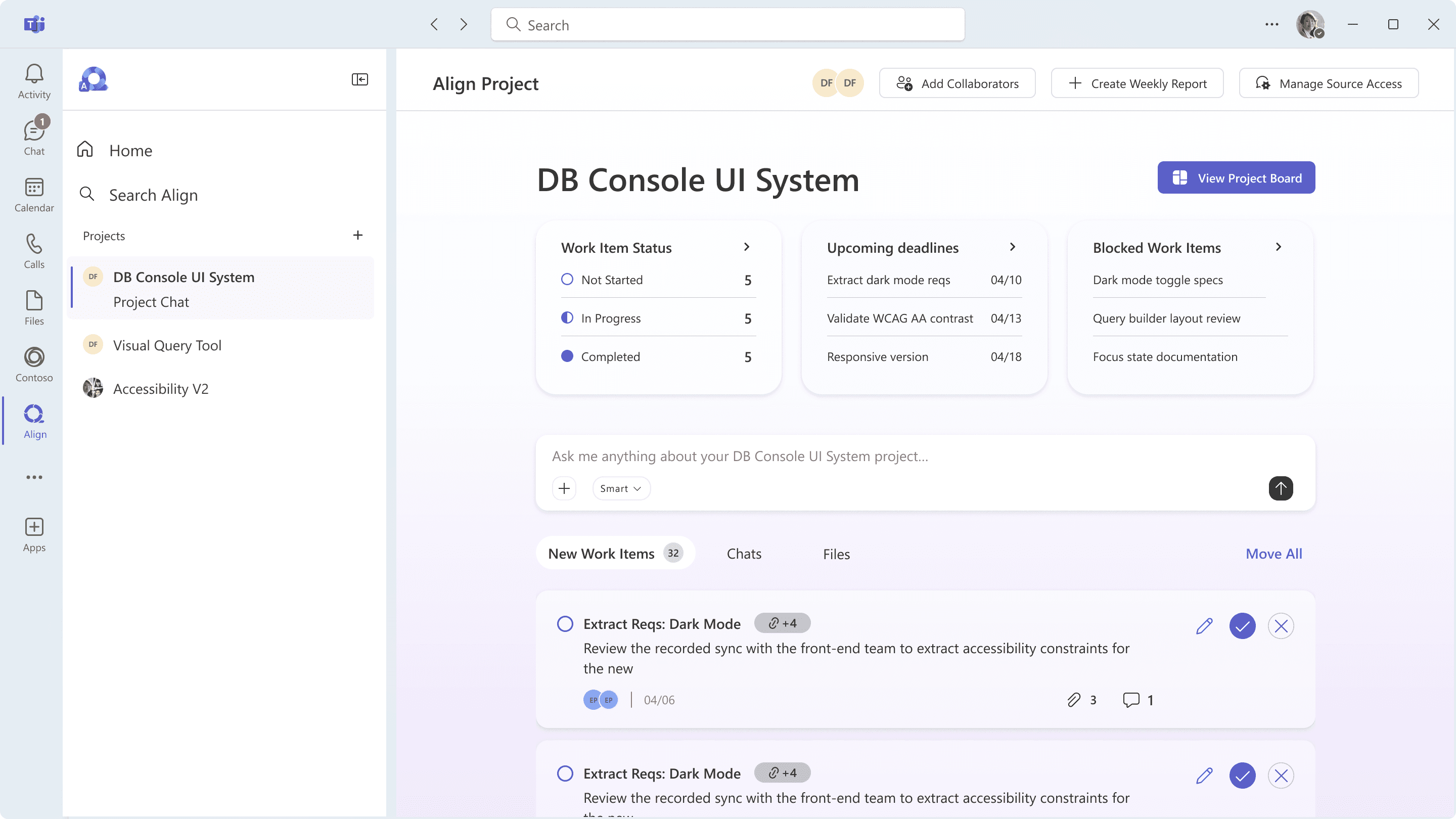
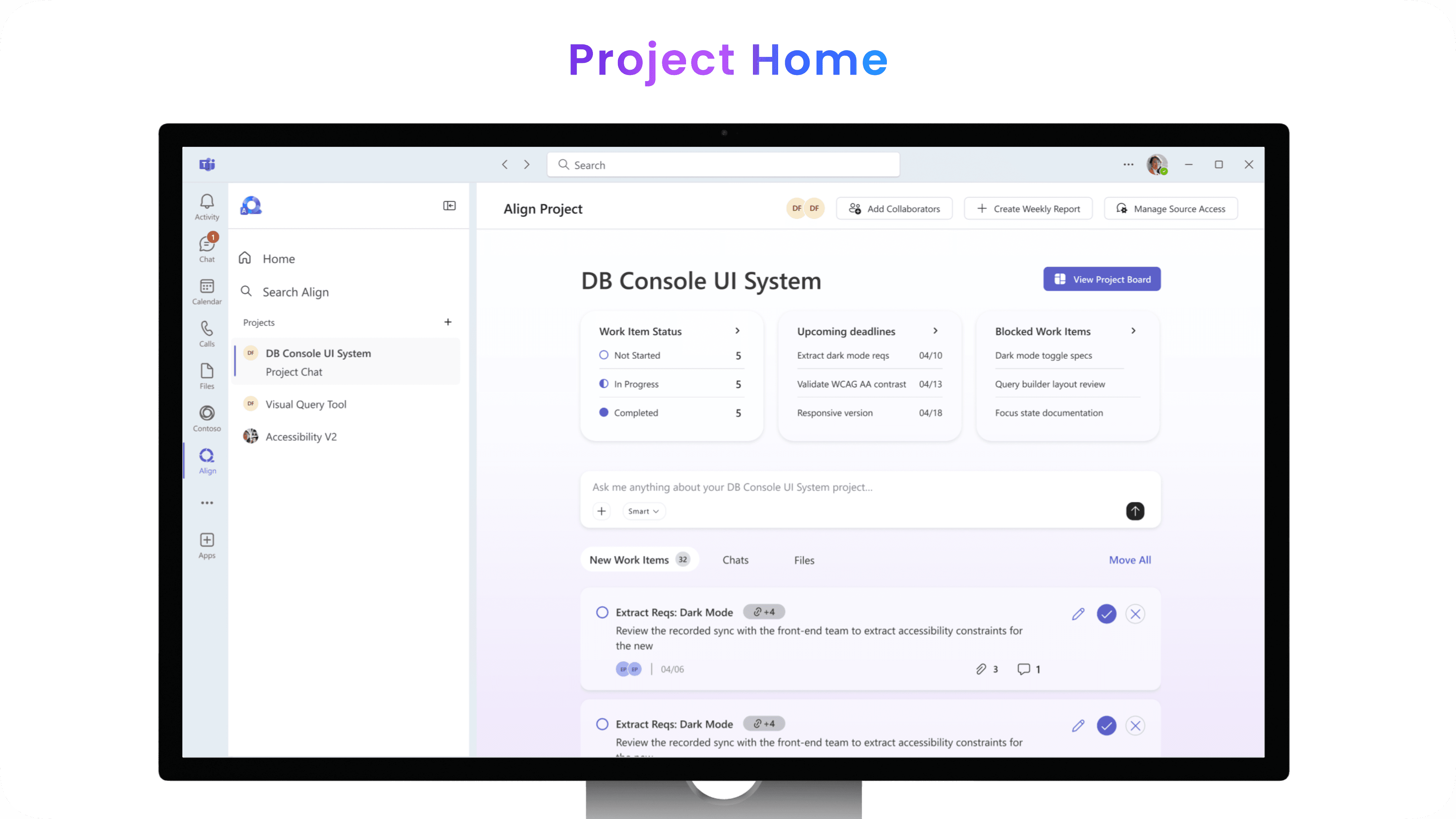
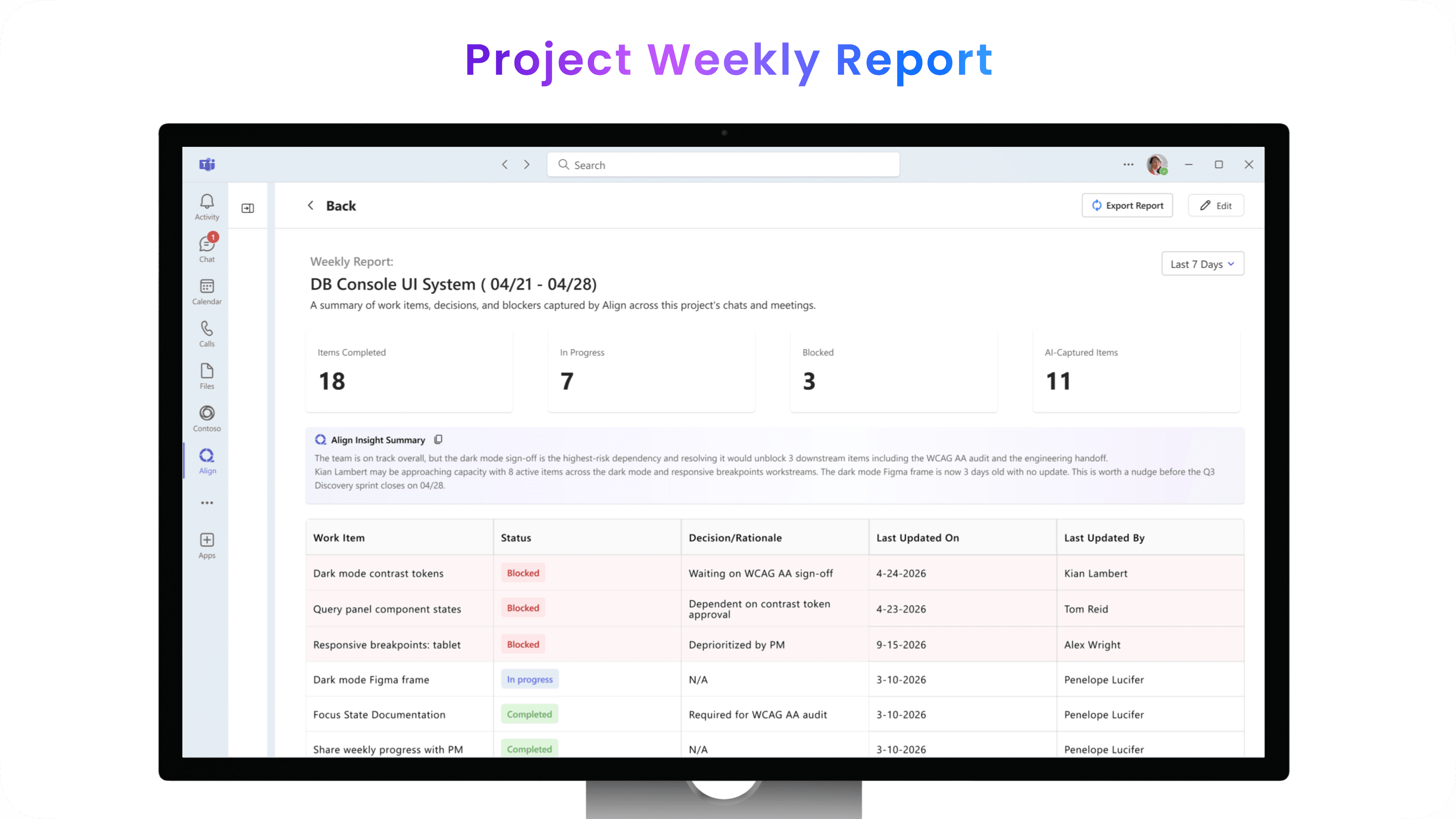
On the project home page, users can leverage the top section to track project progress.
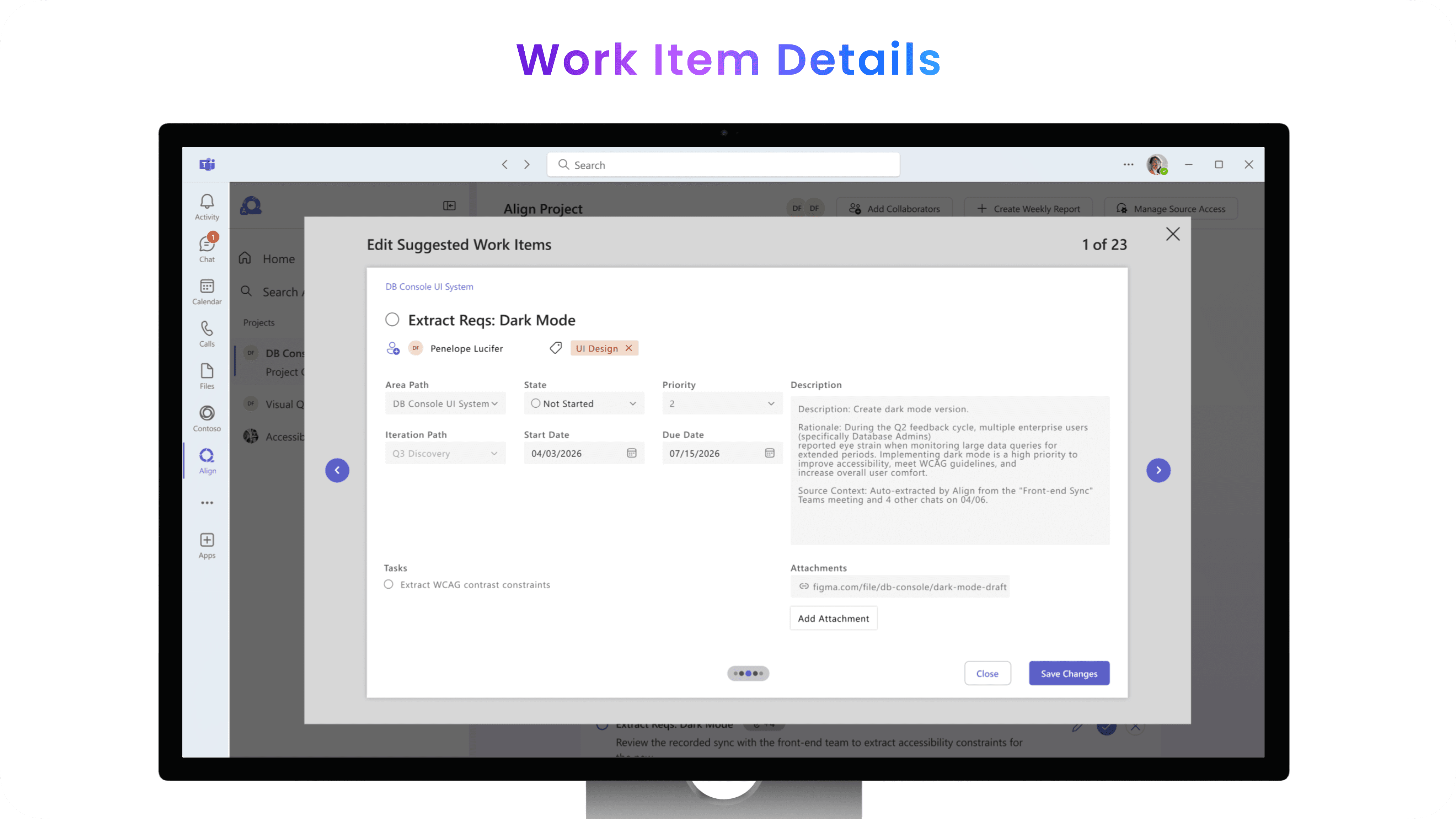
In the bottom section, users can view suggested work items and choose to edit, save, or discard them. They can also access chats and files related to the project.
Users can invite collaborators to the project at any time.
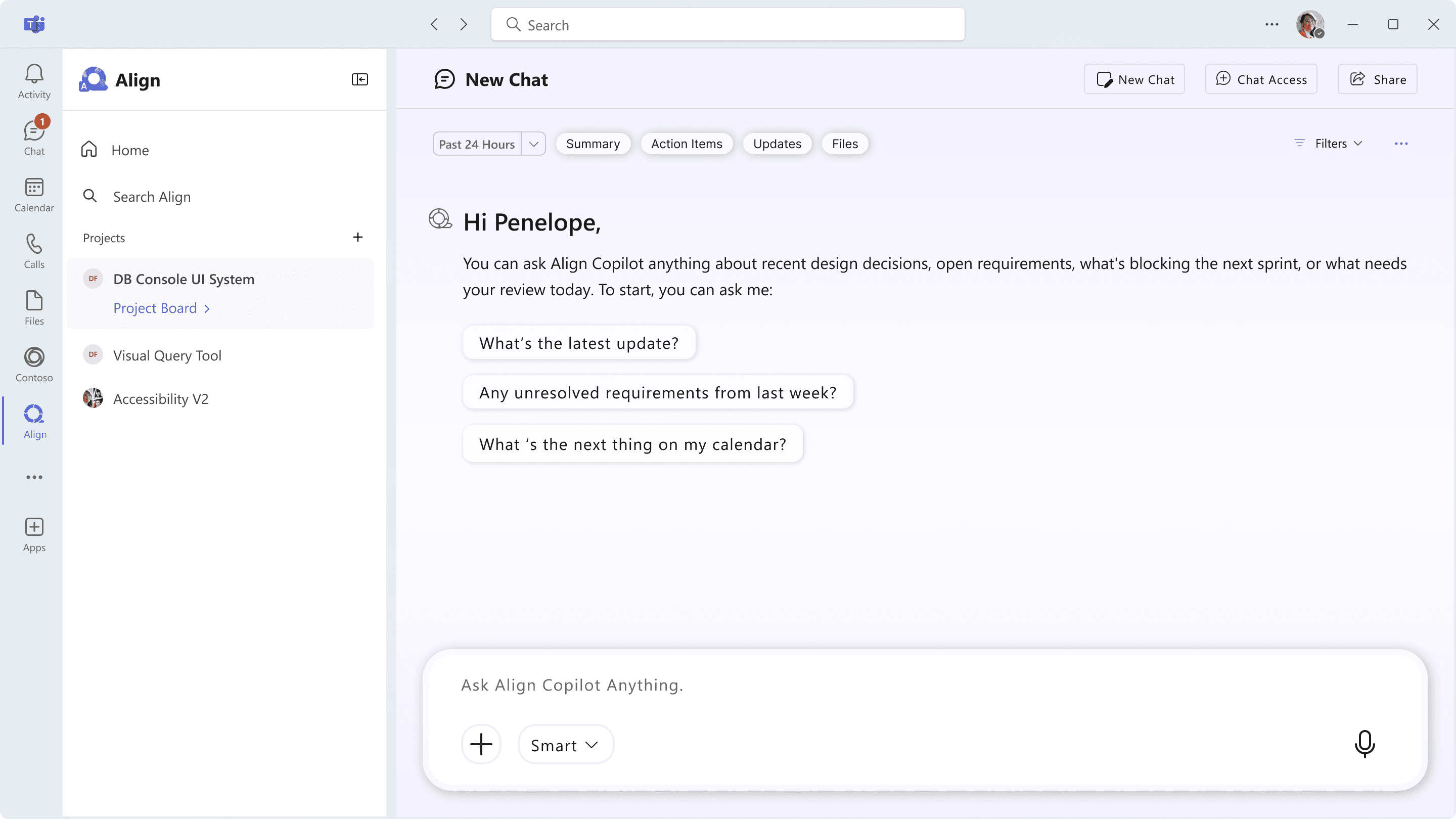
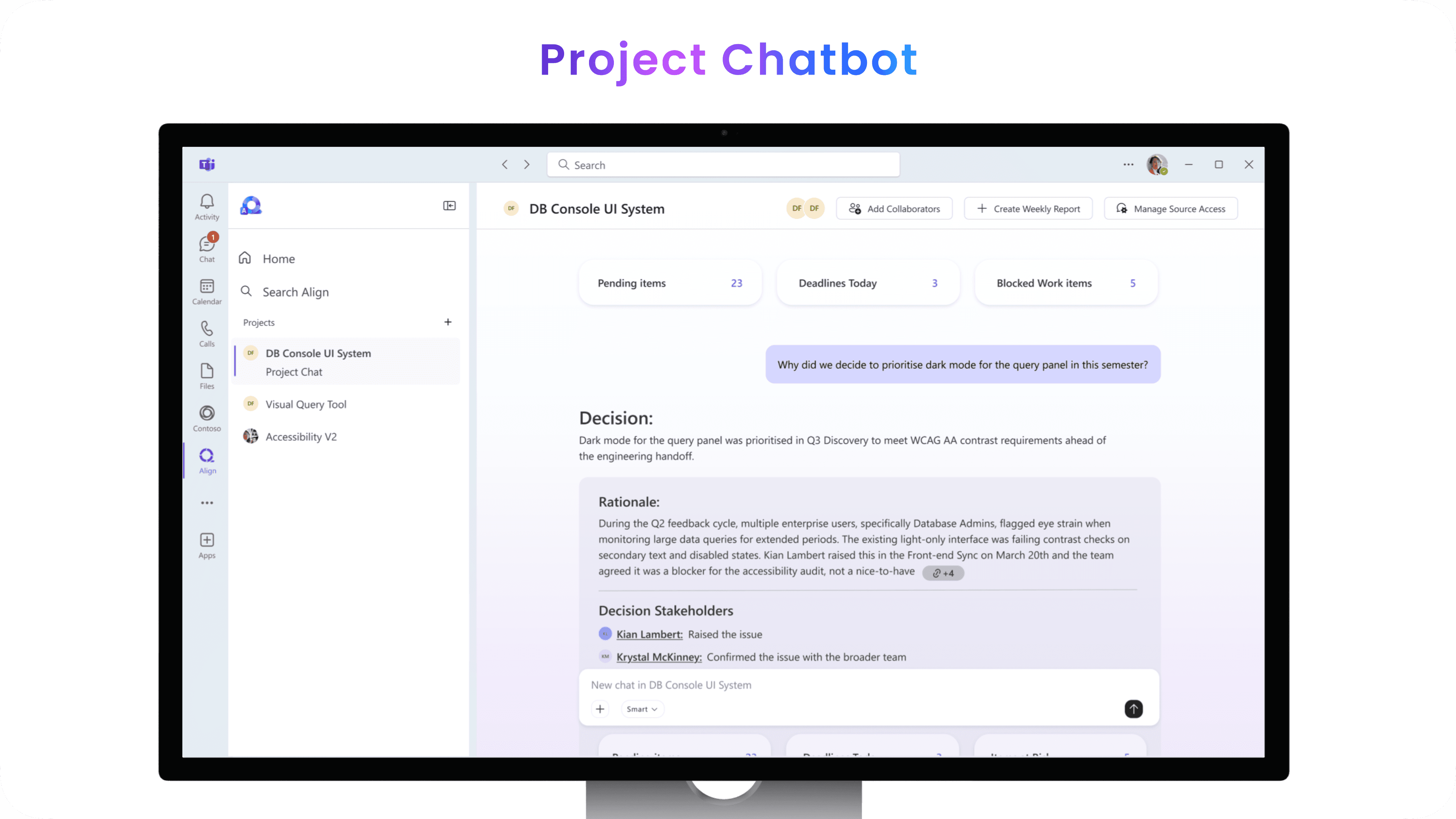
Users can use the Copilot chatbot on the home page to receive personalized support, from managing work items to accessing meeting and file updates related to the project.


Users can use the Add button within the side panel to create a project and assign Teams chats as sources for the project.
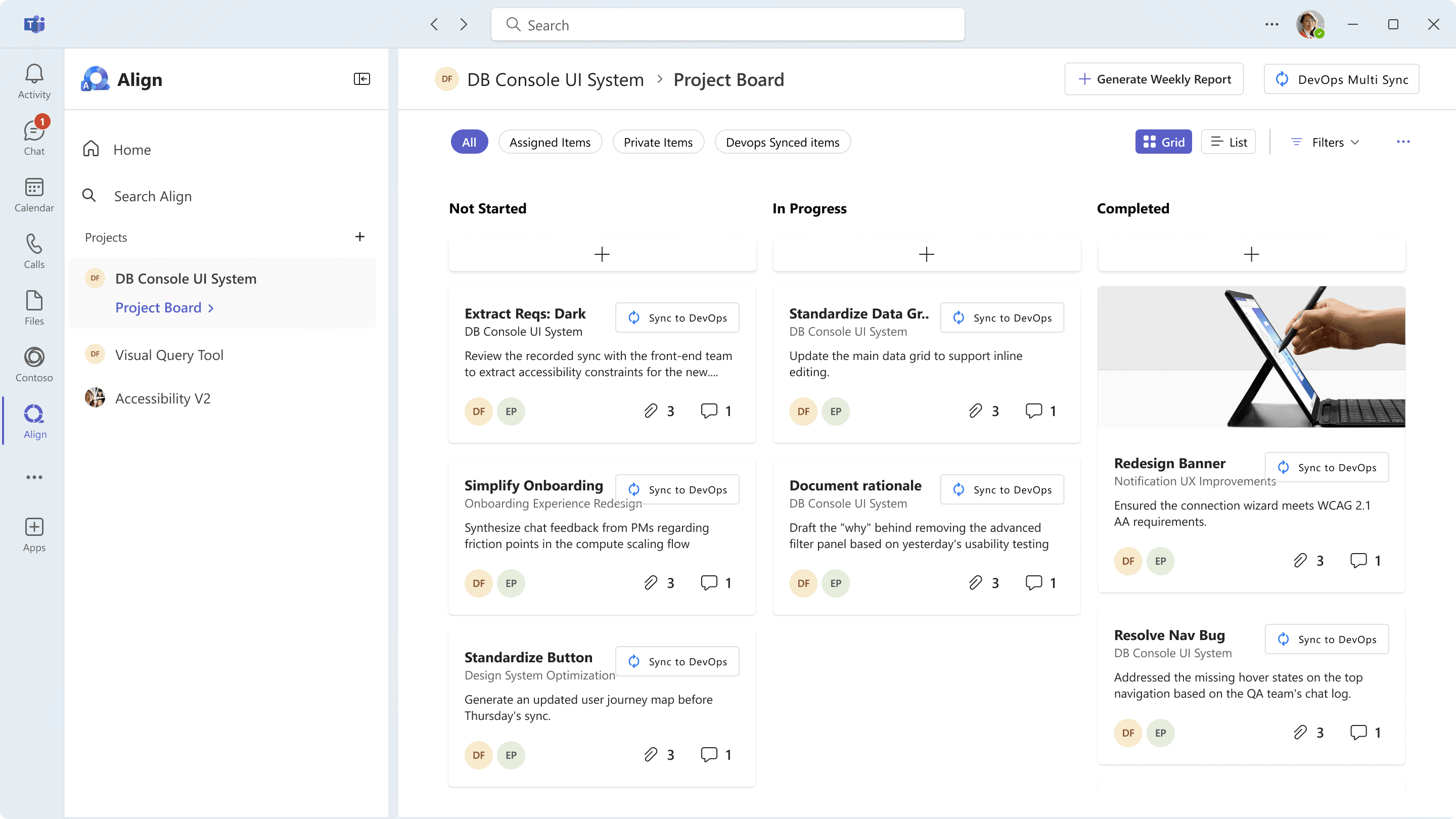
Project Board with DevOps Integration
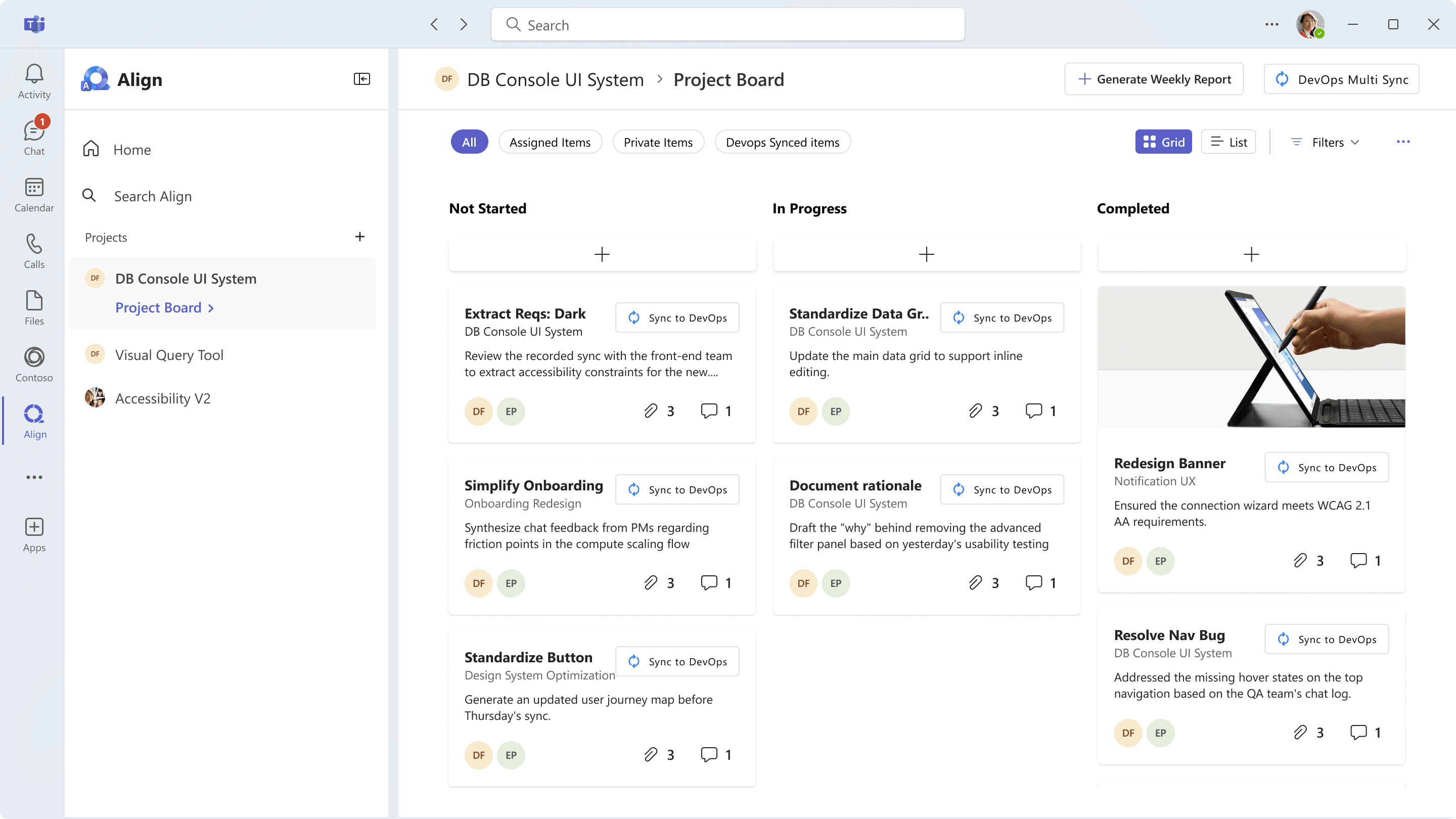
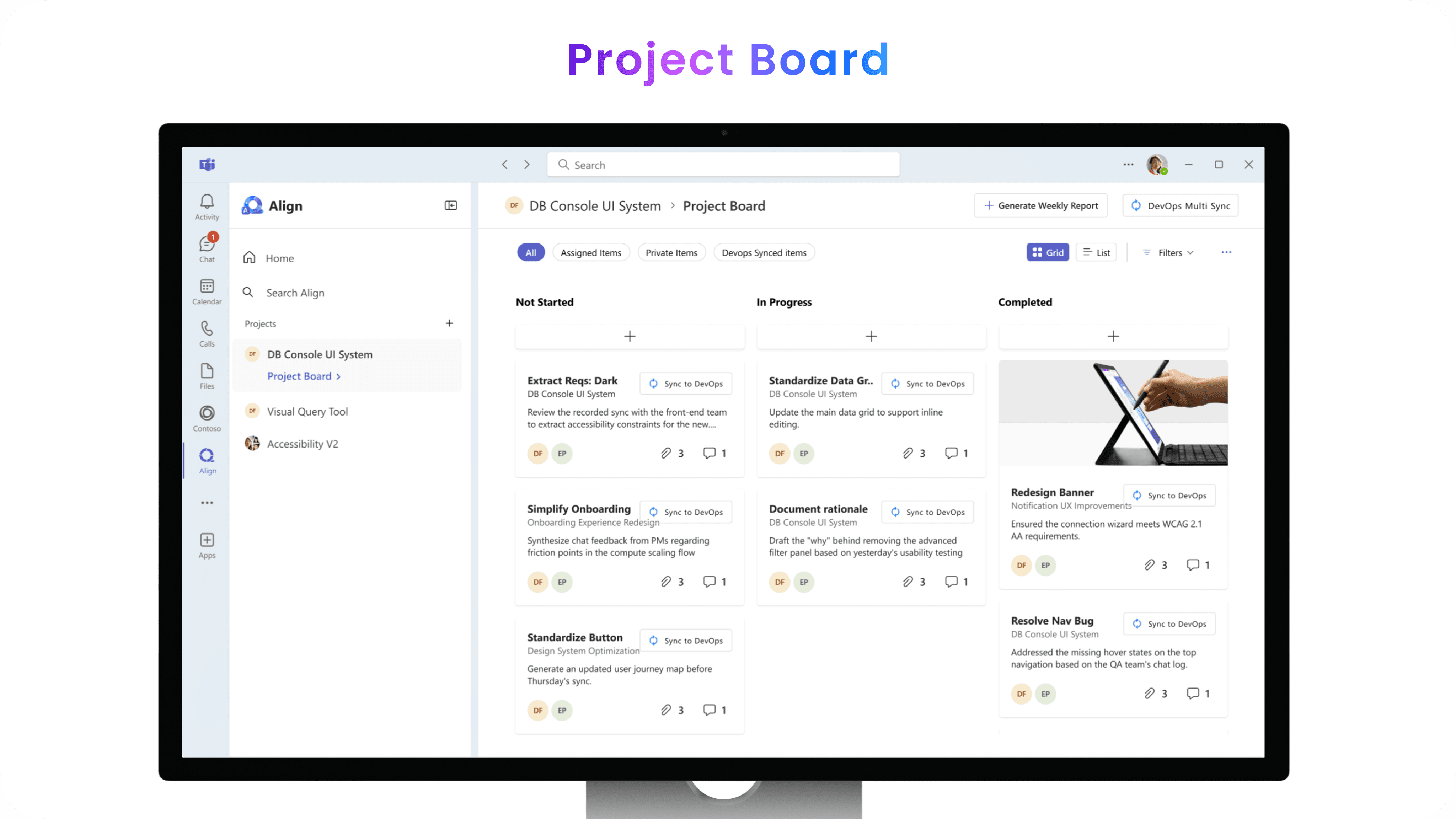
Users can use the Project Board to view all work items associated with their projects.
They can click on a work item card to view details and sync it to Azure DevOps once they grant Align access to their DevOps workspace.

Real-time Intelligent Meeting Assistant
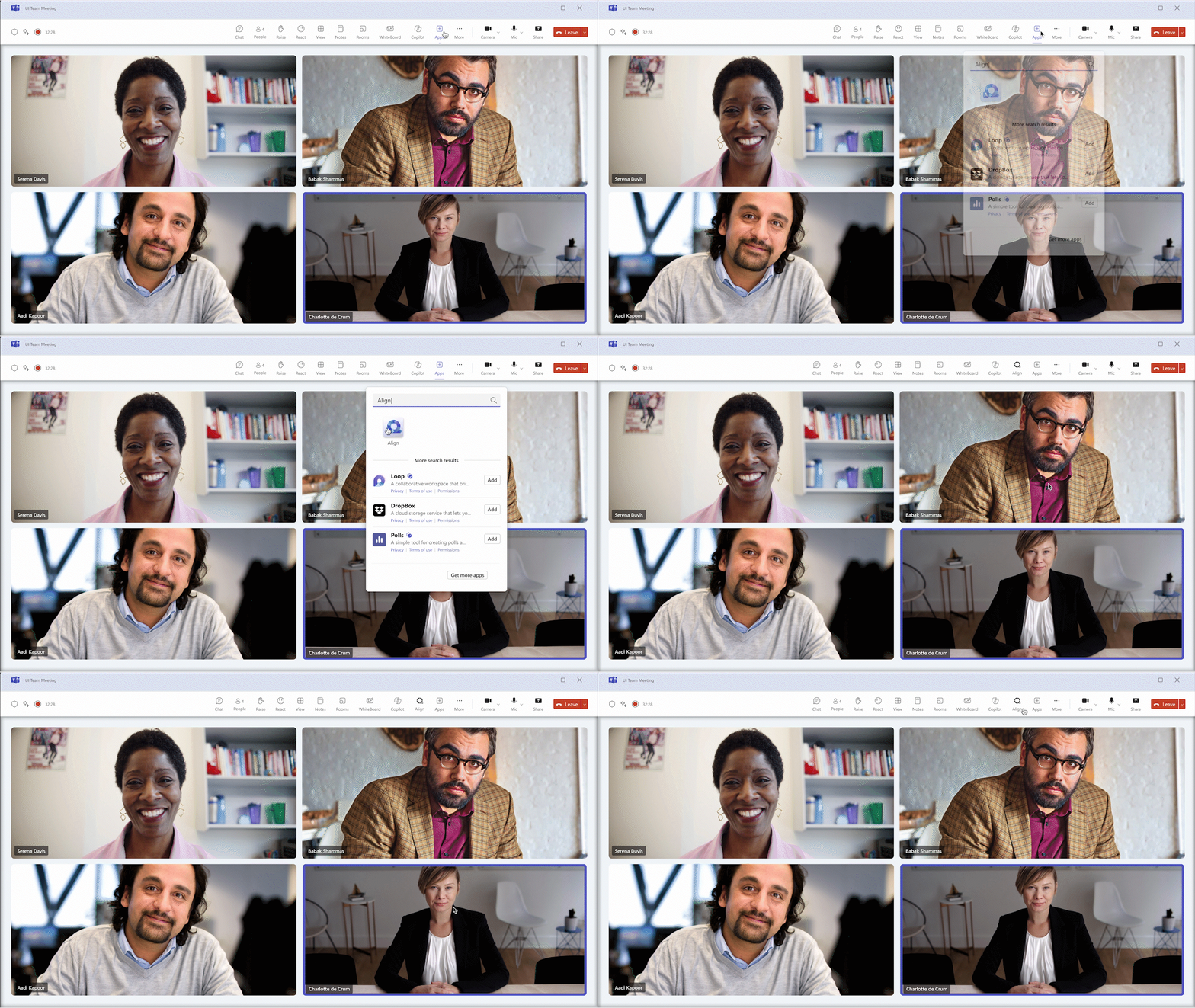
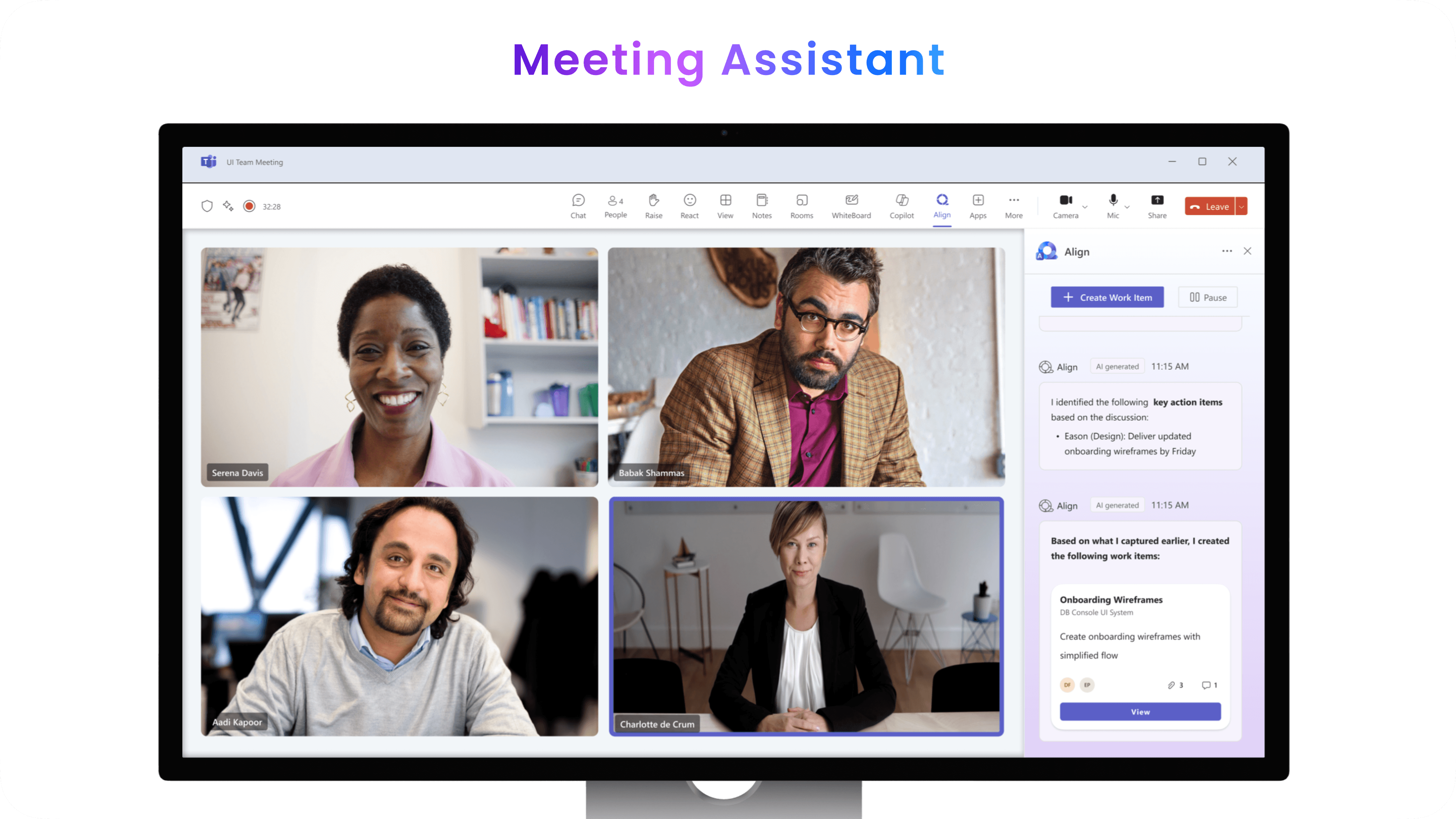
Users can also add Align to ongoing meetings to gain real-time support for work item generation.
Once added, Align audits the meeting, summarizes key information, generates action items, and suggests work items based on the discussion.
With one click, users can view work item details and choose to save them to a project or sync them directly to Azure DevOps. They can also share work items with other meeting participants.


Other meeting participants will receive a real-time pop-up notification and can immediately view the shared work item within the meeting chat.
Real-Time Support in Chat
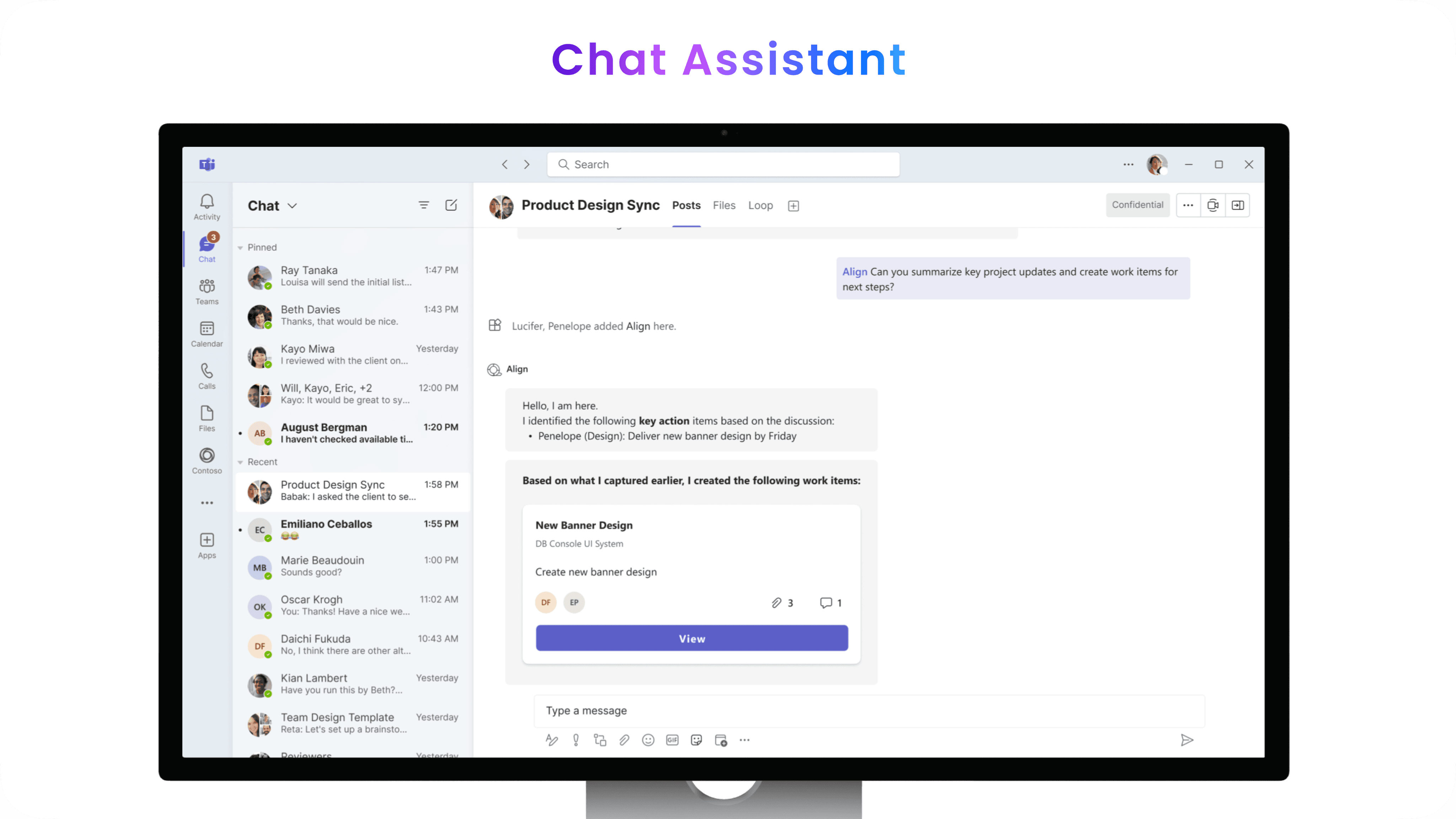
Once added to Teams, Align can be @called directly by users in any chat to provide timely support.
This aligns with the latest interaction model for Copilot features.

Design System
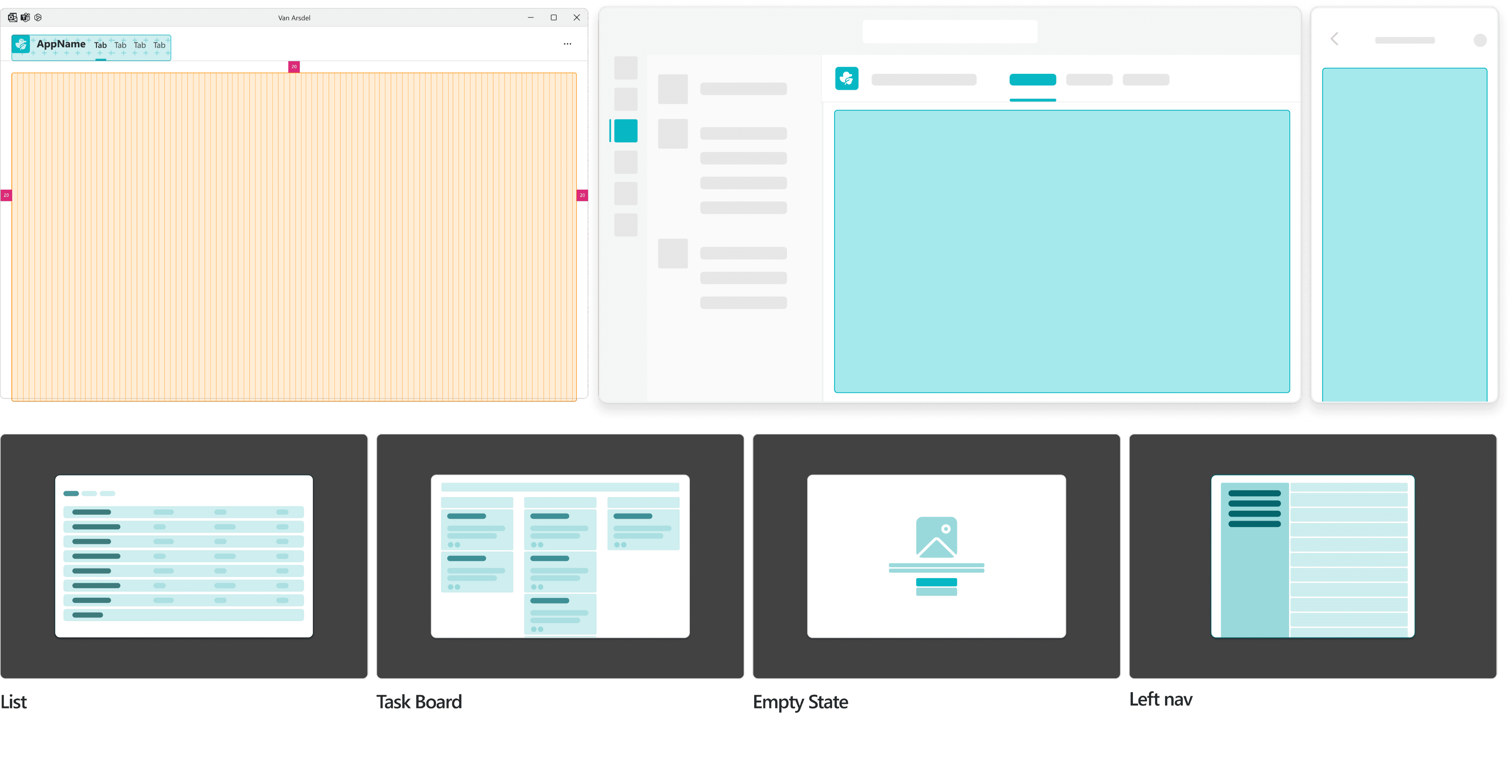
We aligned our final design with Microsoft’s Fluent Design System, following its grid, component anatomy, and design patterns to ensure scalability, feasibility, and consistency within the Microsoft ecosystem.
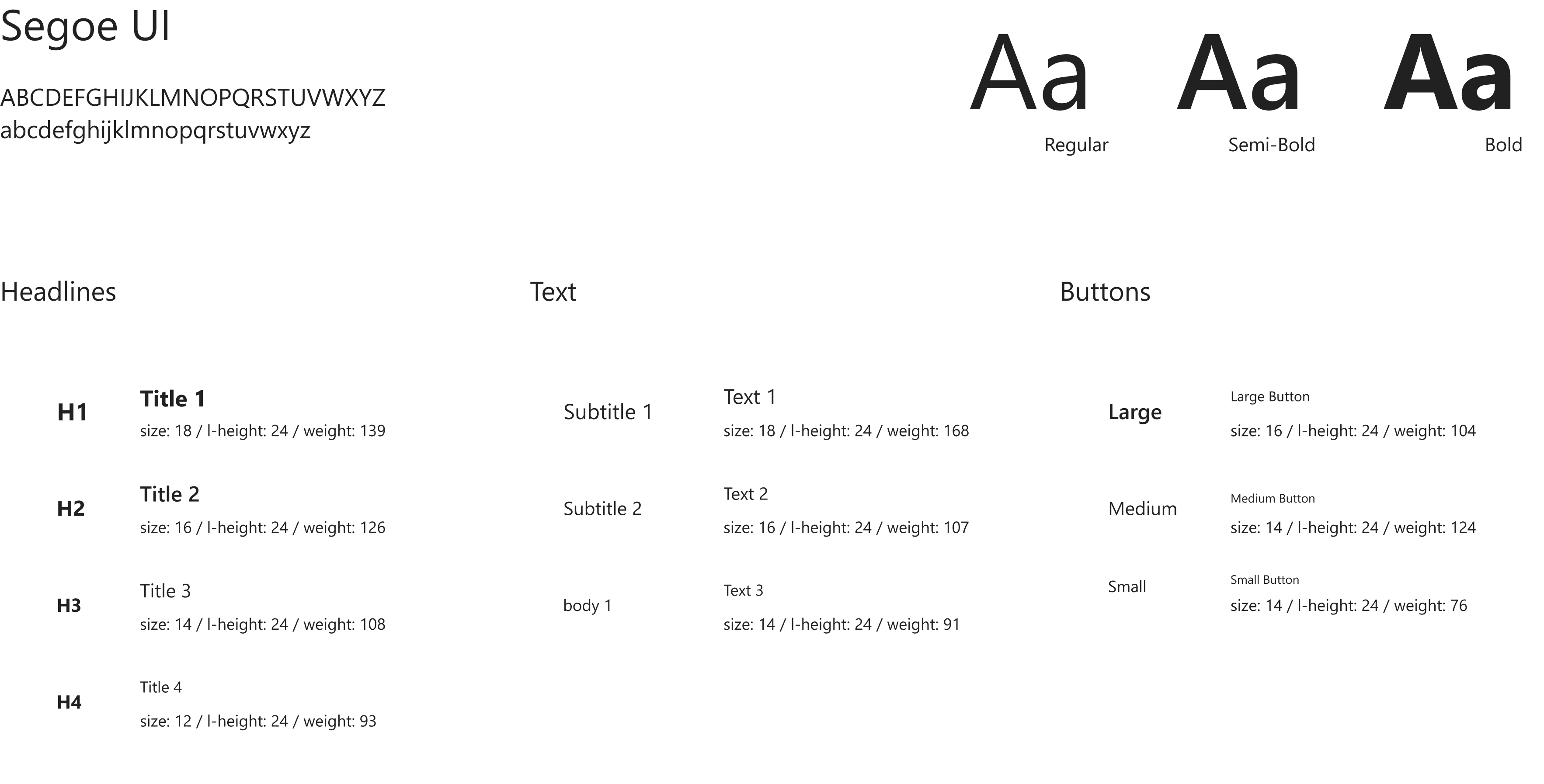
We selected Segoe UI as the primary typeface to ensure consistency with Microsoft’s design language across products.
For the color palette, we aligned with the design language of Microsoft Teams, Copilot, and Azure to minimize the learning curve and reduce disruption to users’ existing workflows.
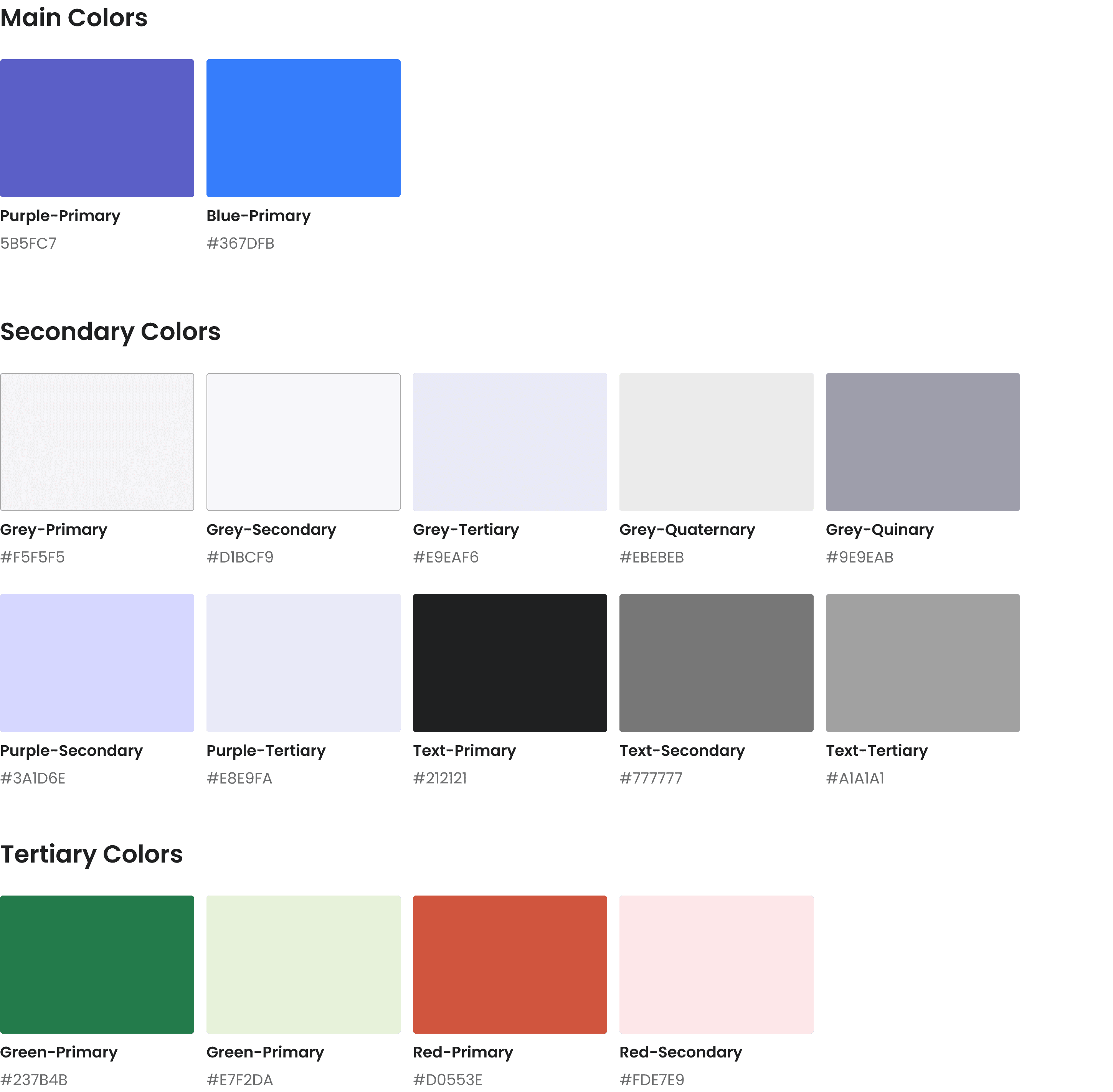
By establishing these guidelines, our team ensured consistency across all design elements and created a unified component library for seamless developer handoff.

Design Process
During the development process, my team conducted three rounds of wireframe testing and feedback sessions to evaluate whether the design effectively addressed the design requirements and to iteratively refine the solution.
Requirement 1: Minimize disruption to the user’s existing workflow
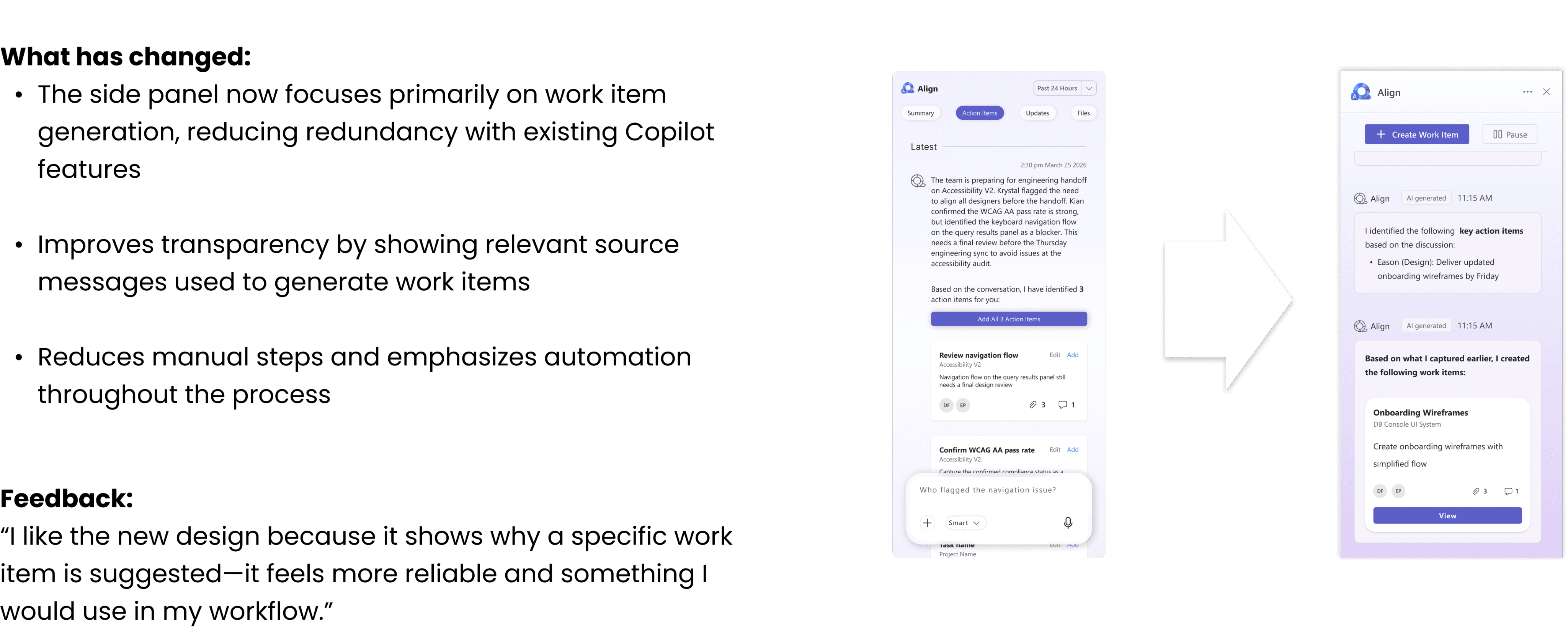
To better align our final solution with users’ existing workflows, we iterated on the design based on the latest Copilot interaction patterns, reducing manual steps and simplifying the visual hierarchy in the final interfaces.
For in-chat support, we conducted a comparative analysis of current AI interaction patterns and found that users can invoke Copilot and other Teams apps directly within chat. We adopted this model to minimize manual effort:
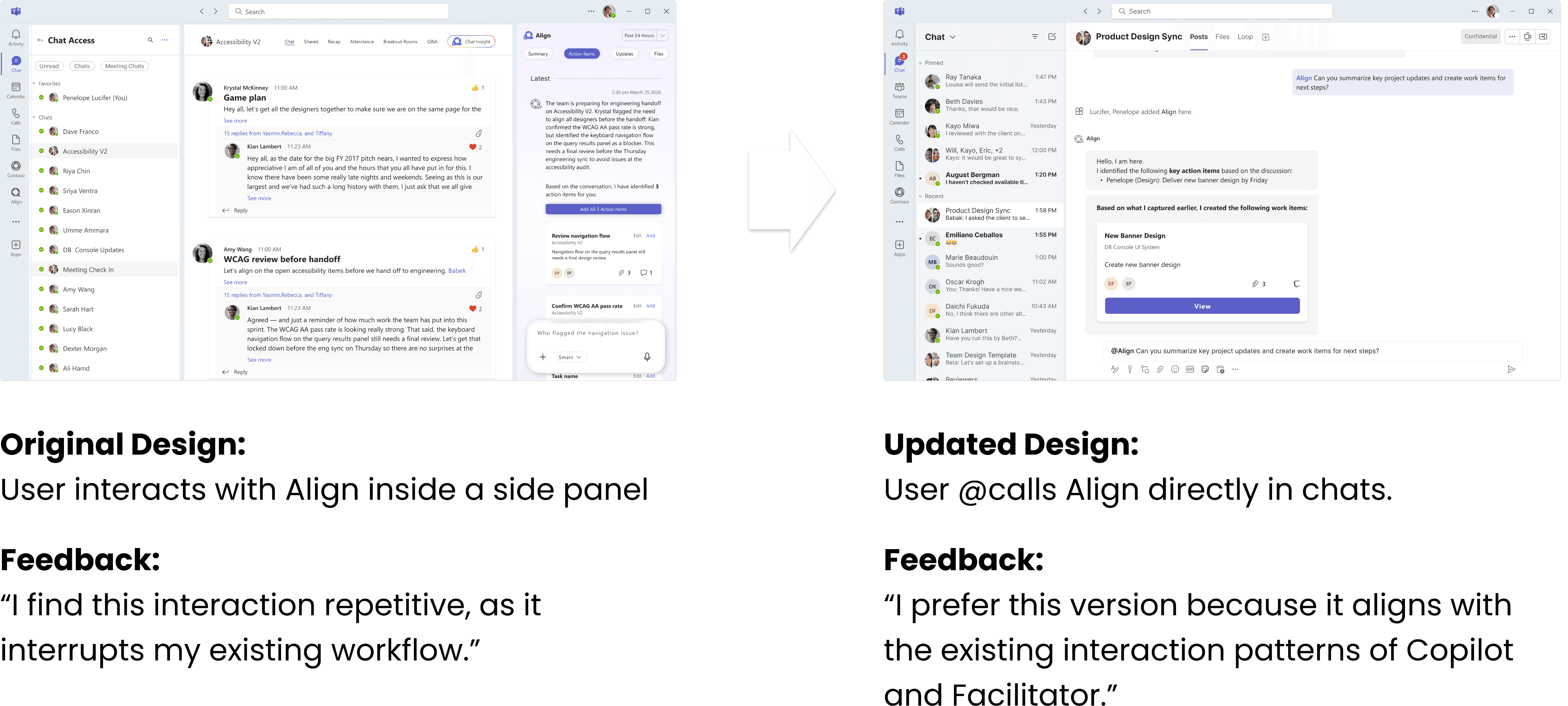
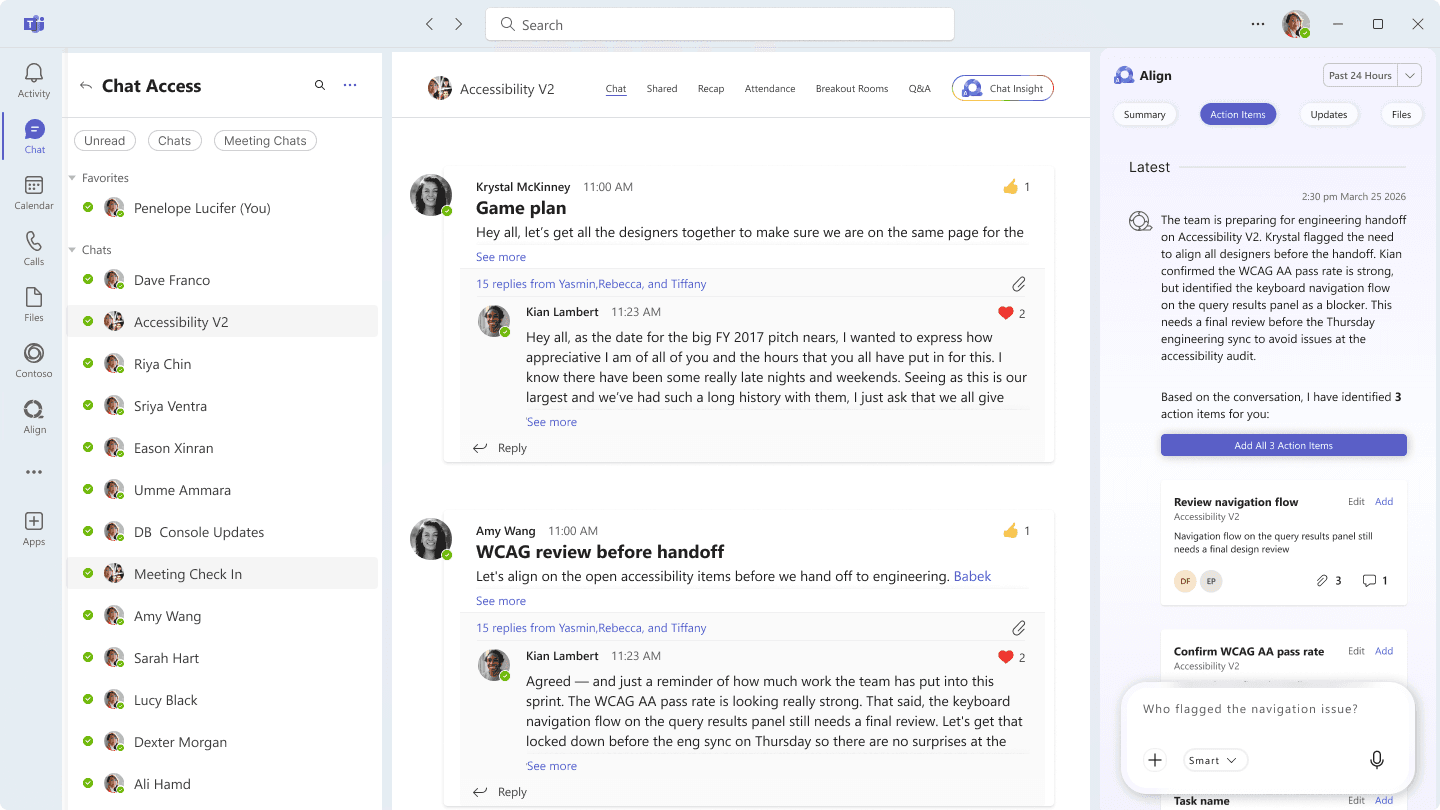
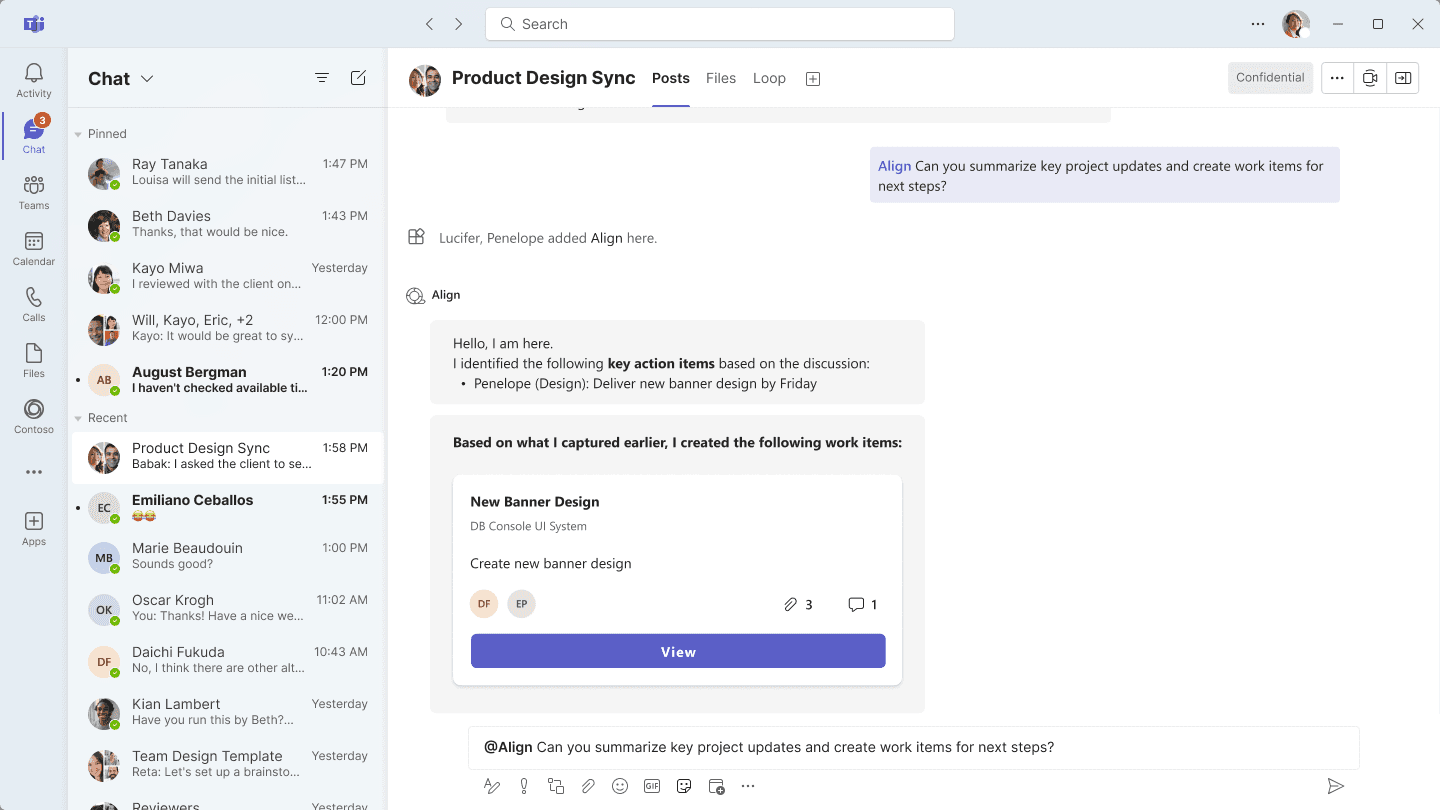

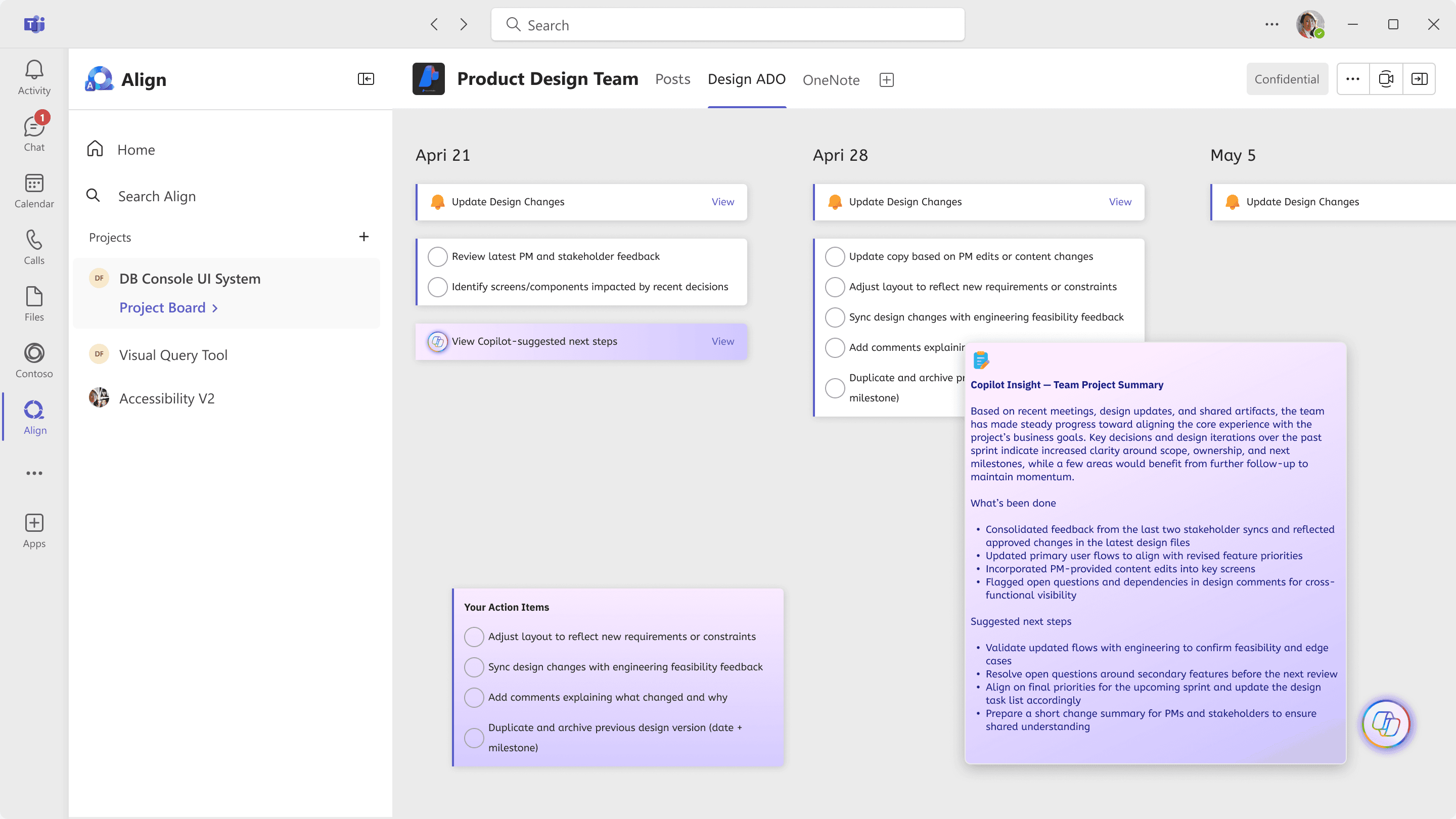
Users noted that our original design overlapped with existing Copilot features. They preferred the side panel to focus primarily on work item generation, so we refined the design accordingly.
Requirement 2: Help users stay informed on project progress while maintaining a clear, centralized source of truth.
To better understand what information and tools users need to effectively track project progress, my team co-designed with target users and tested our early wireframes.
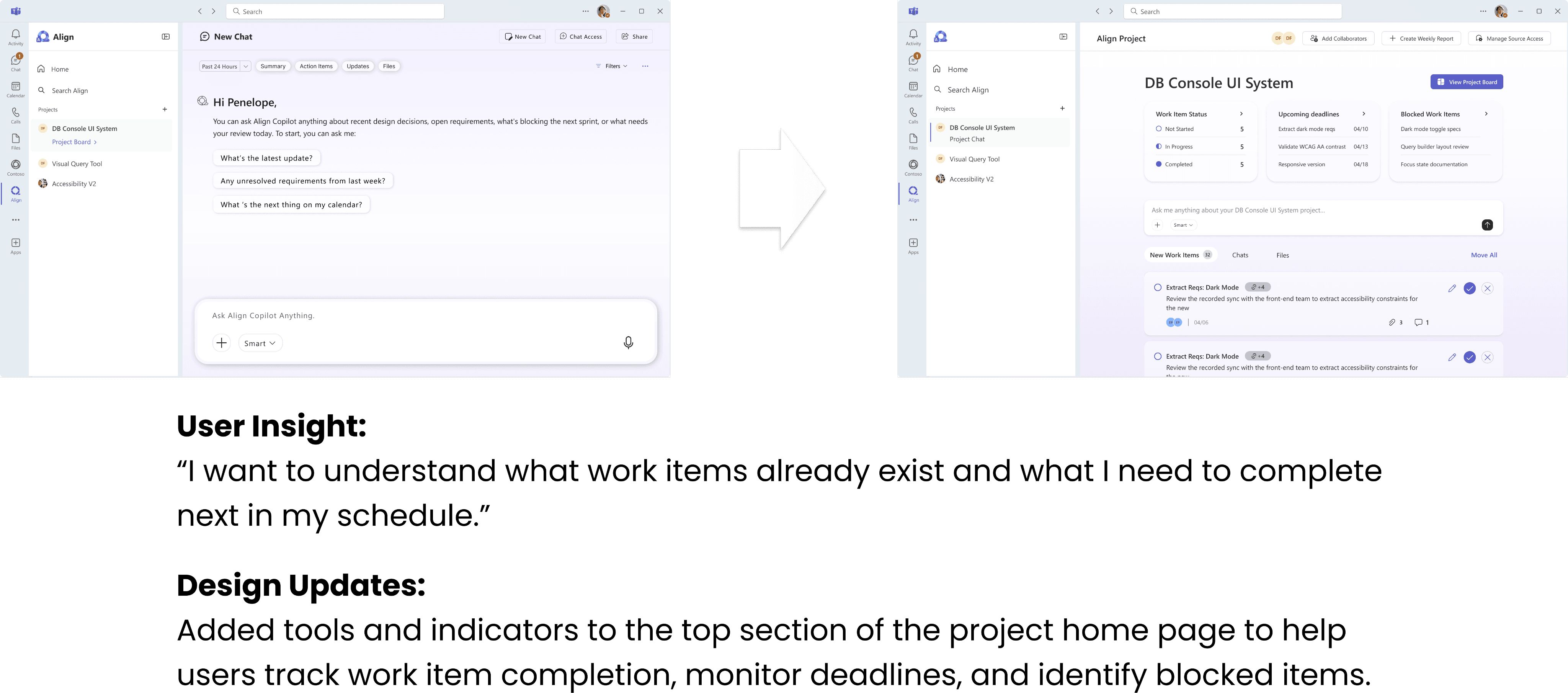
We also iterated on the project home page to better support users’ needs. Based on feedback, users wanted to quickly understand project progress at a glance. In response, we introduced progress trackers in the top section. The bottom section allows users to monitor newly suggested work items, as well as recent conversations and shared files related to the project:
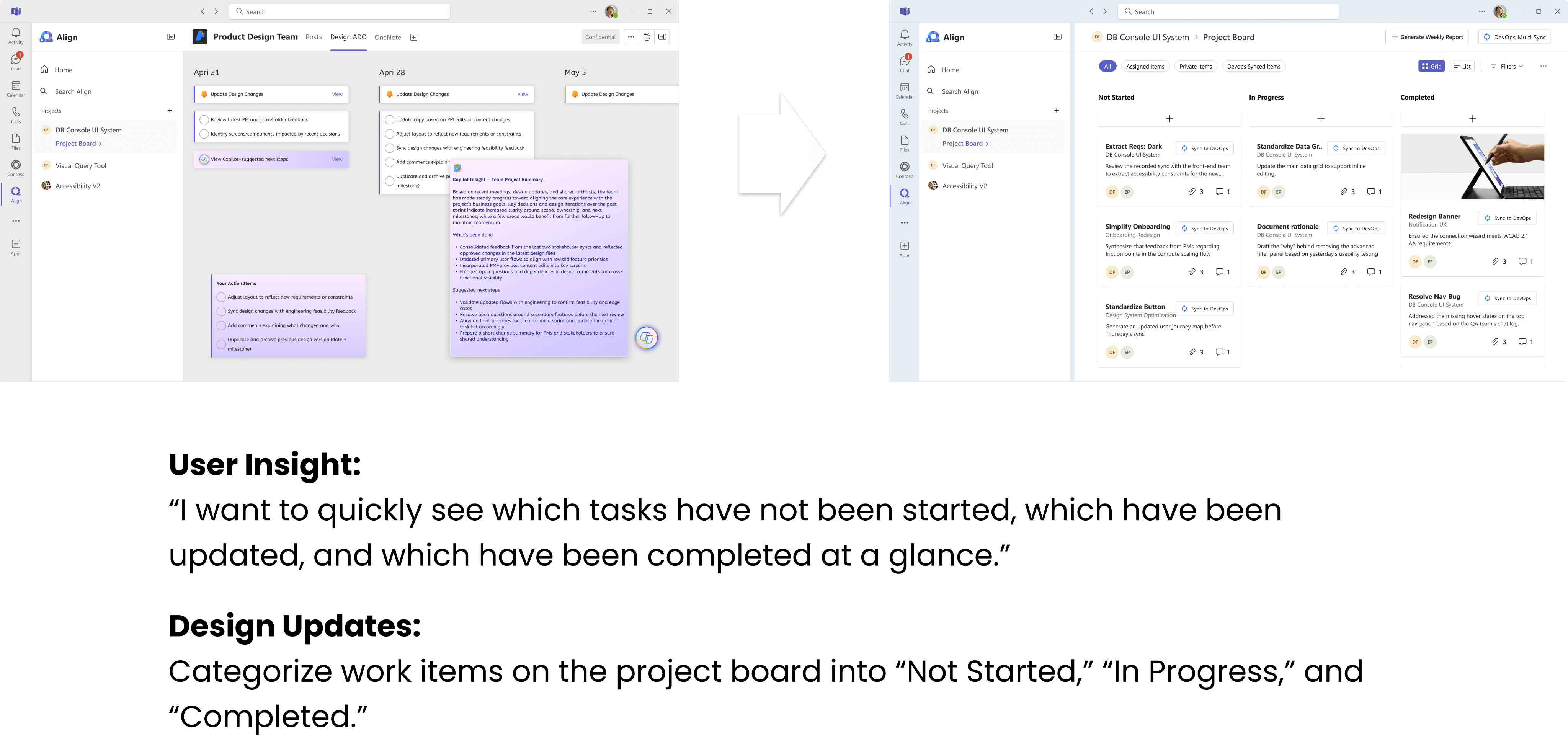
During our concept testing, we also explored which project board design best aligns with users’ mental models. Rather than viewing work items in a weekly calendar format, users preferred organizing tasks based on progress:
High Fidelity Prototype
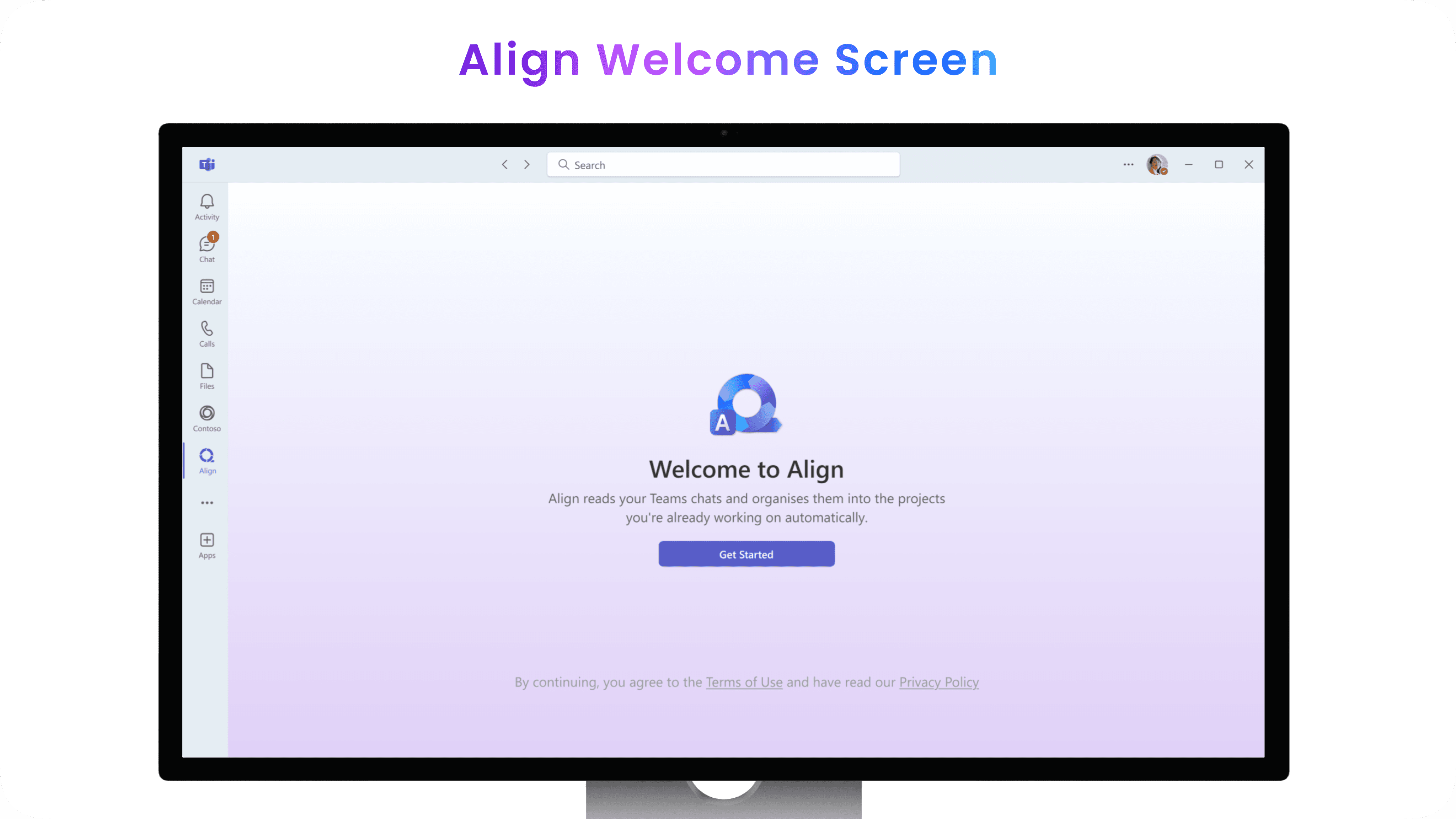
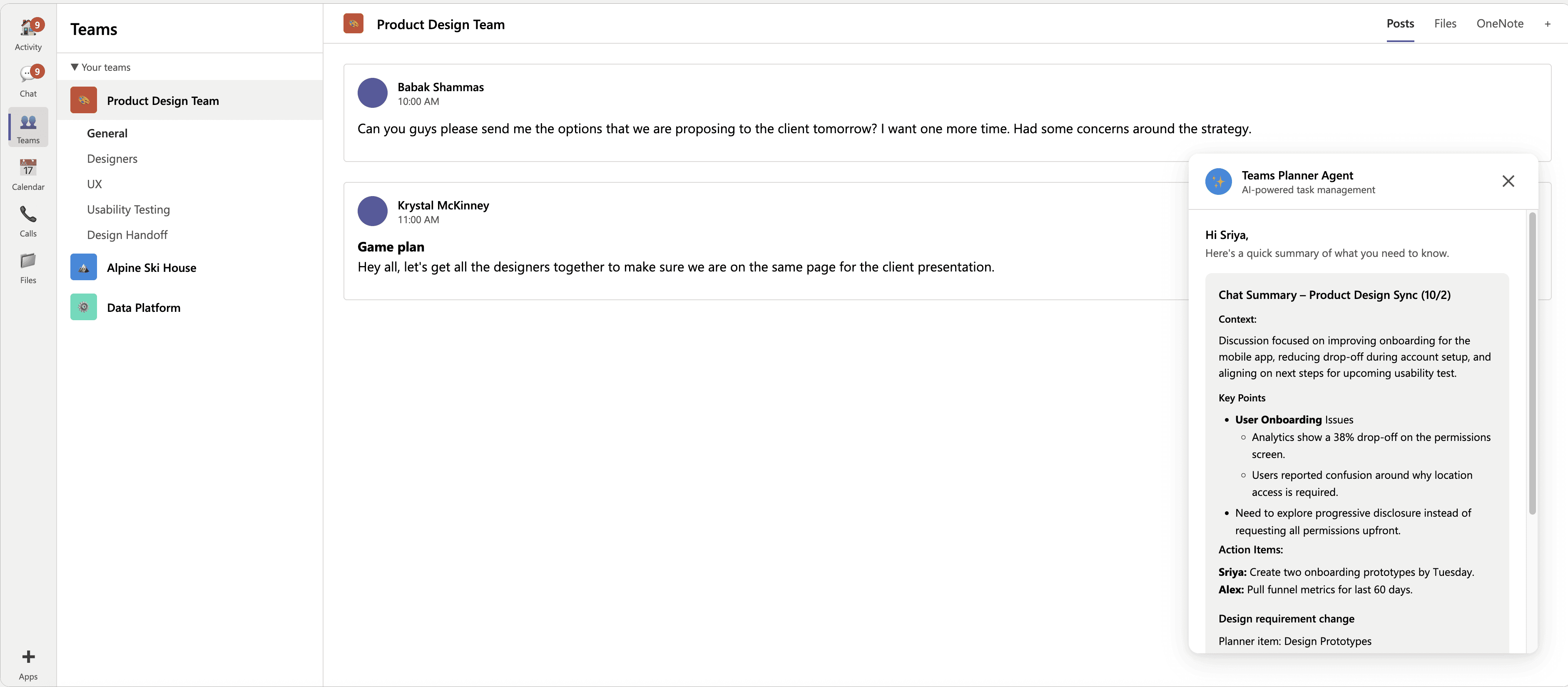
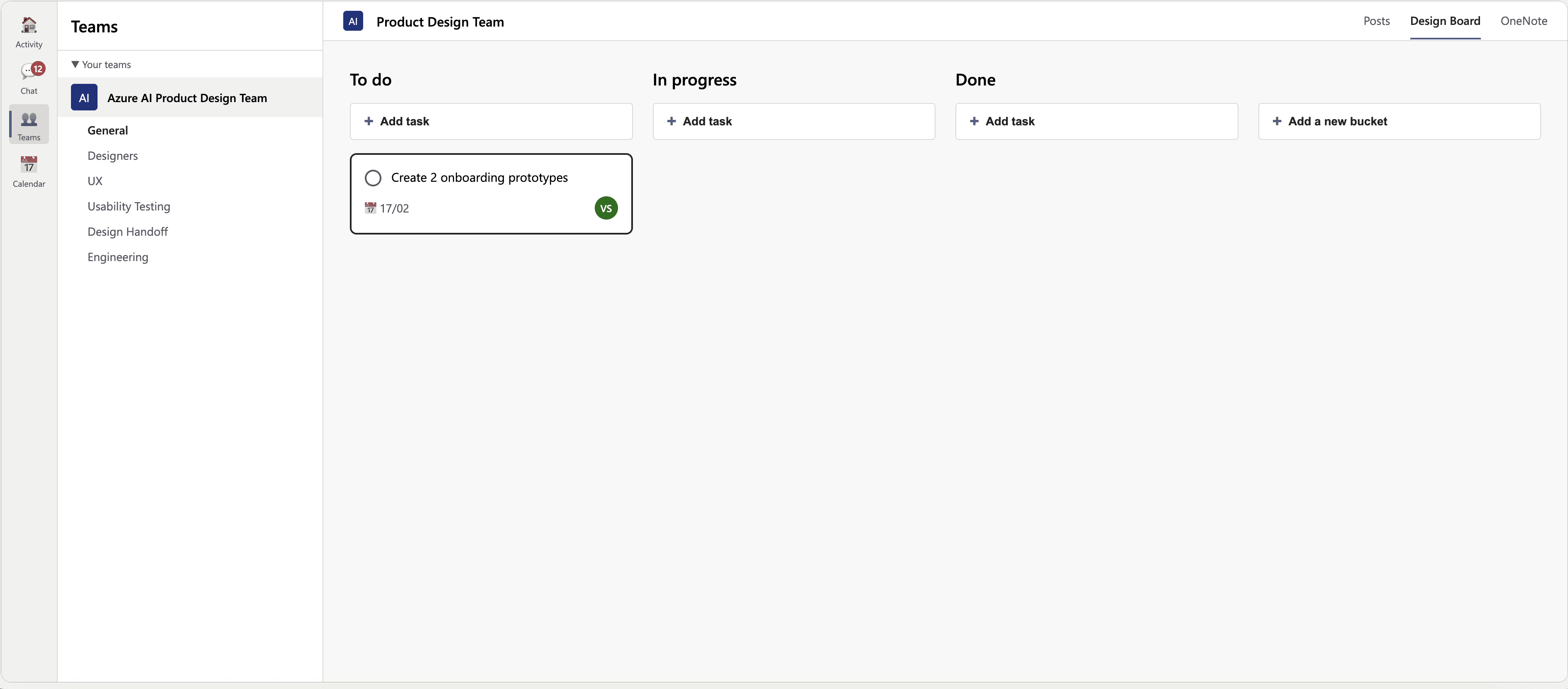
Engineering
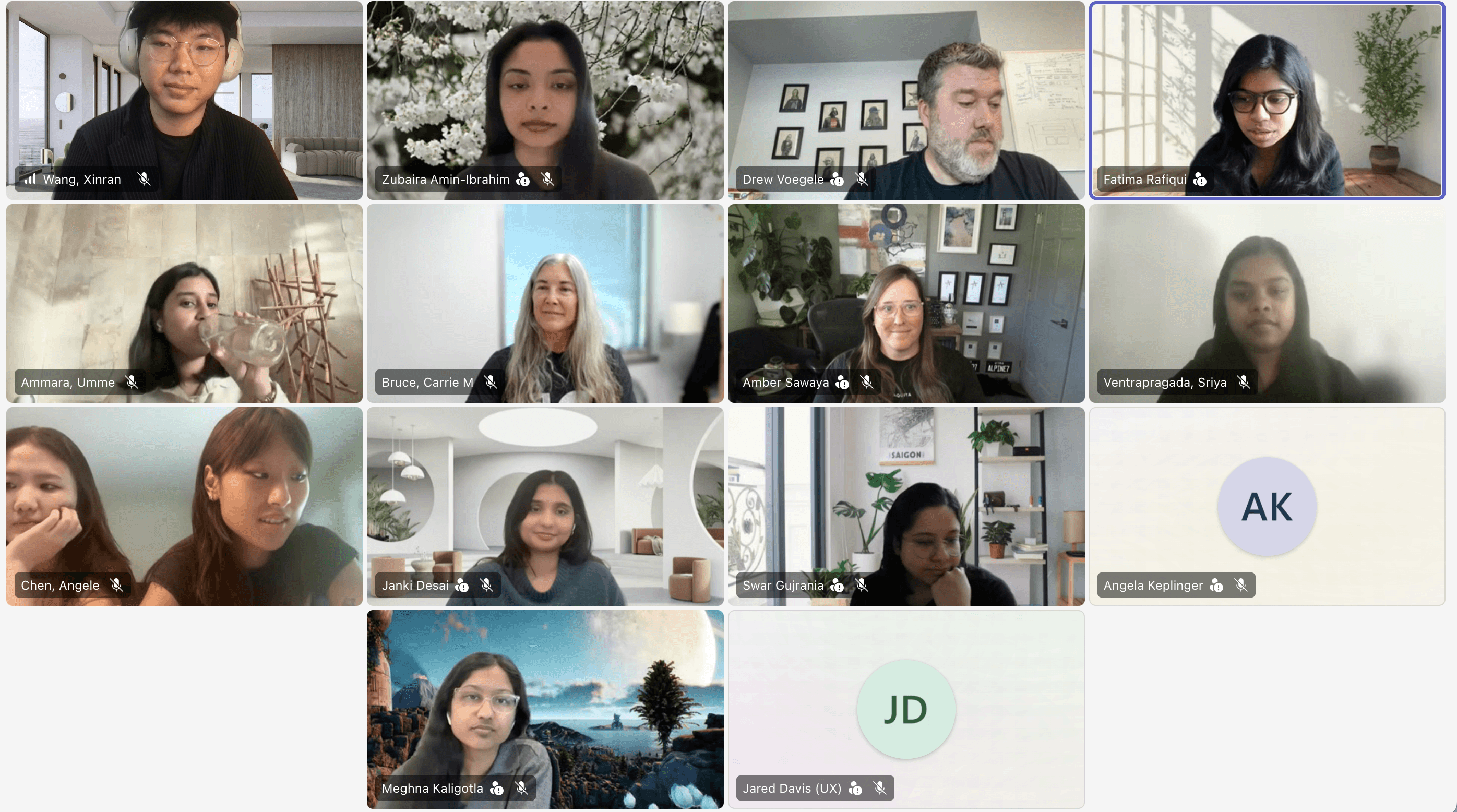
For the engineering demo, I built the in-meeting support feature for Align. It audits a meeting in real time, summarizes key discussion points, extracts action items, and turns those suggestions into structured work items for an Align project dashboard.
Please navigate to the demo page to view the interactive prototype.
What Align achieved
93/100
Design System consistency score
92%
Task completion rate
4.4/5.0
Ease of use score
4.0/5.0
Likelihood of daily integration
80% reduction
Time spent on work item manipulation
4.1/5.0
Trust score for AI features
88/100
Learnability Score
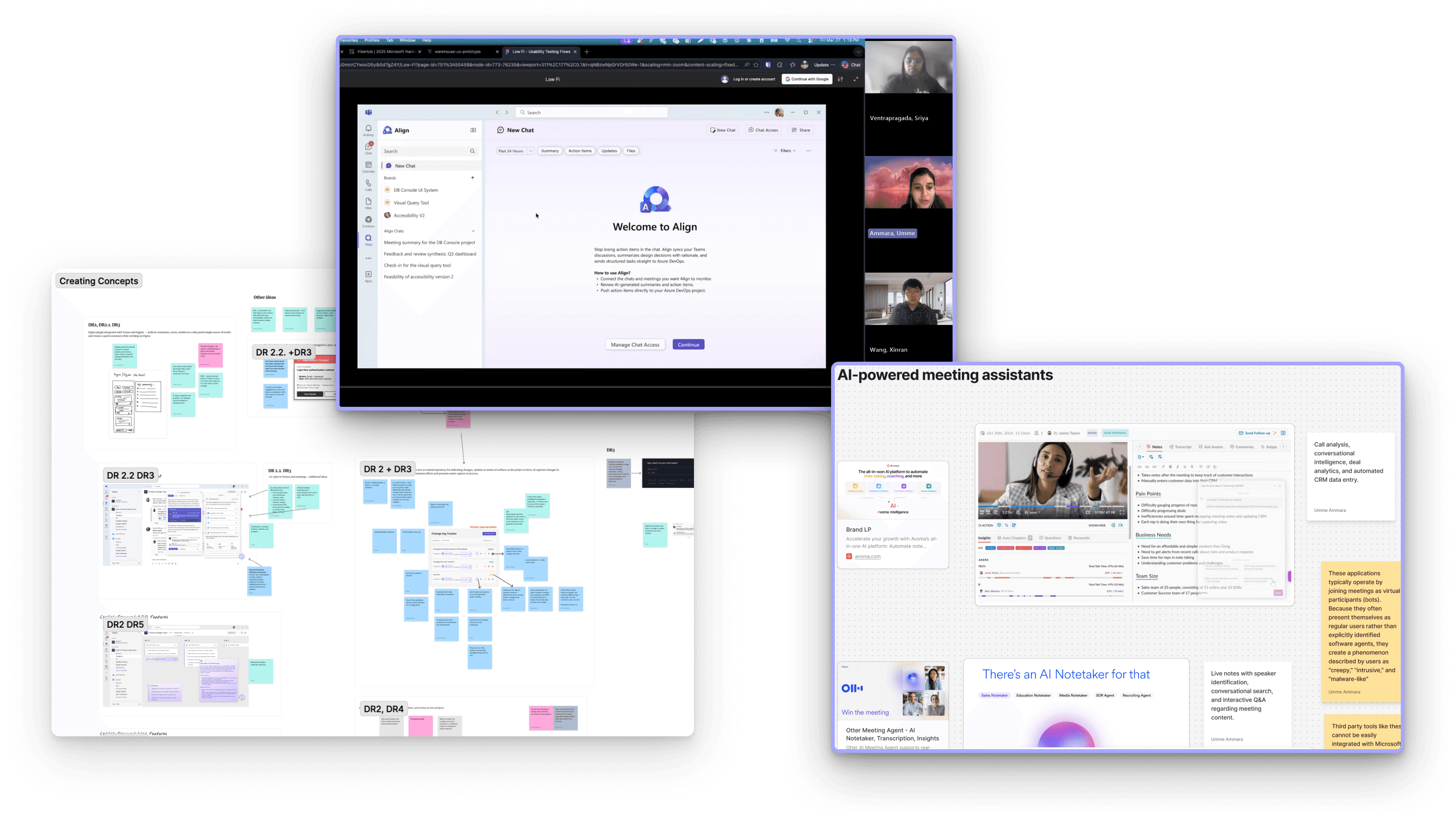
Research Process
To better understand our users’ pain points, the limitations of existing tools, and opportunities for improvement, we conducted the following research activities:
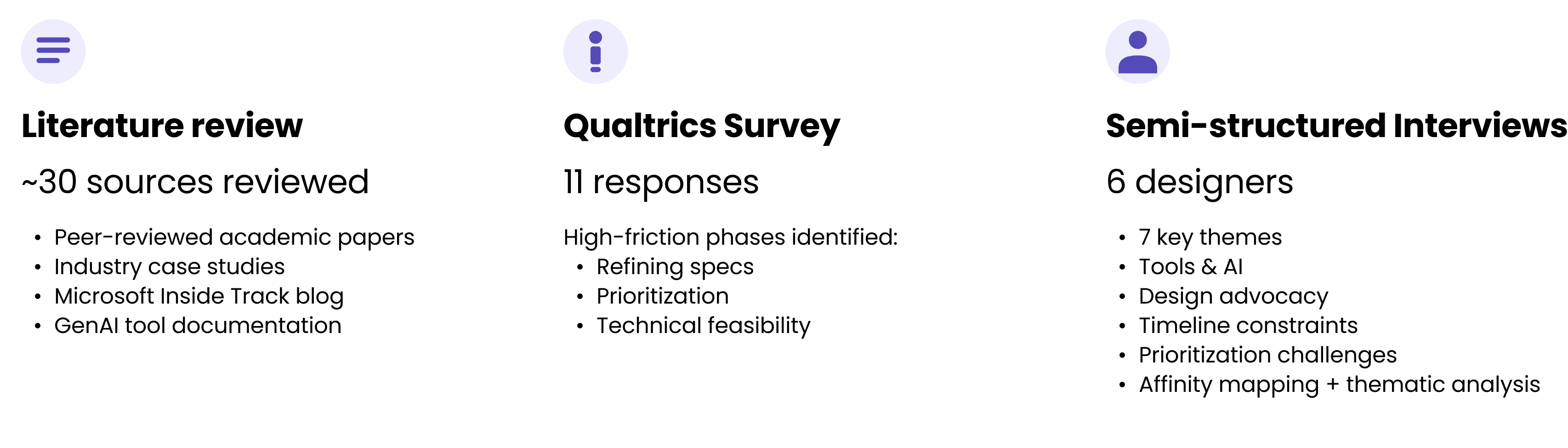
User Pain Points
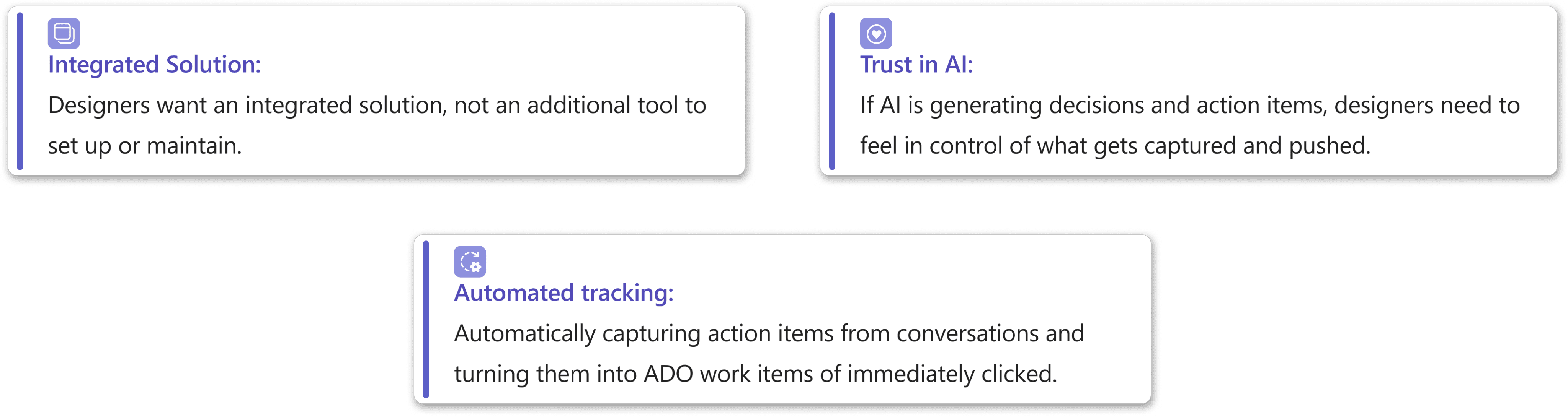
To analyze our research data, our team conducted affinity mapping, task analysis, and comparative analysis, through which we identified the following key issues that need to be addressed:
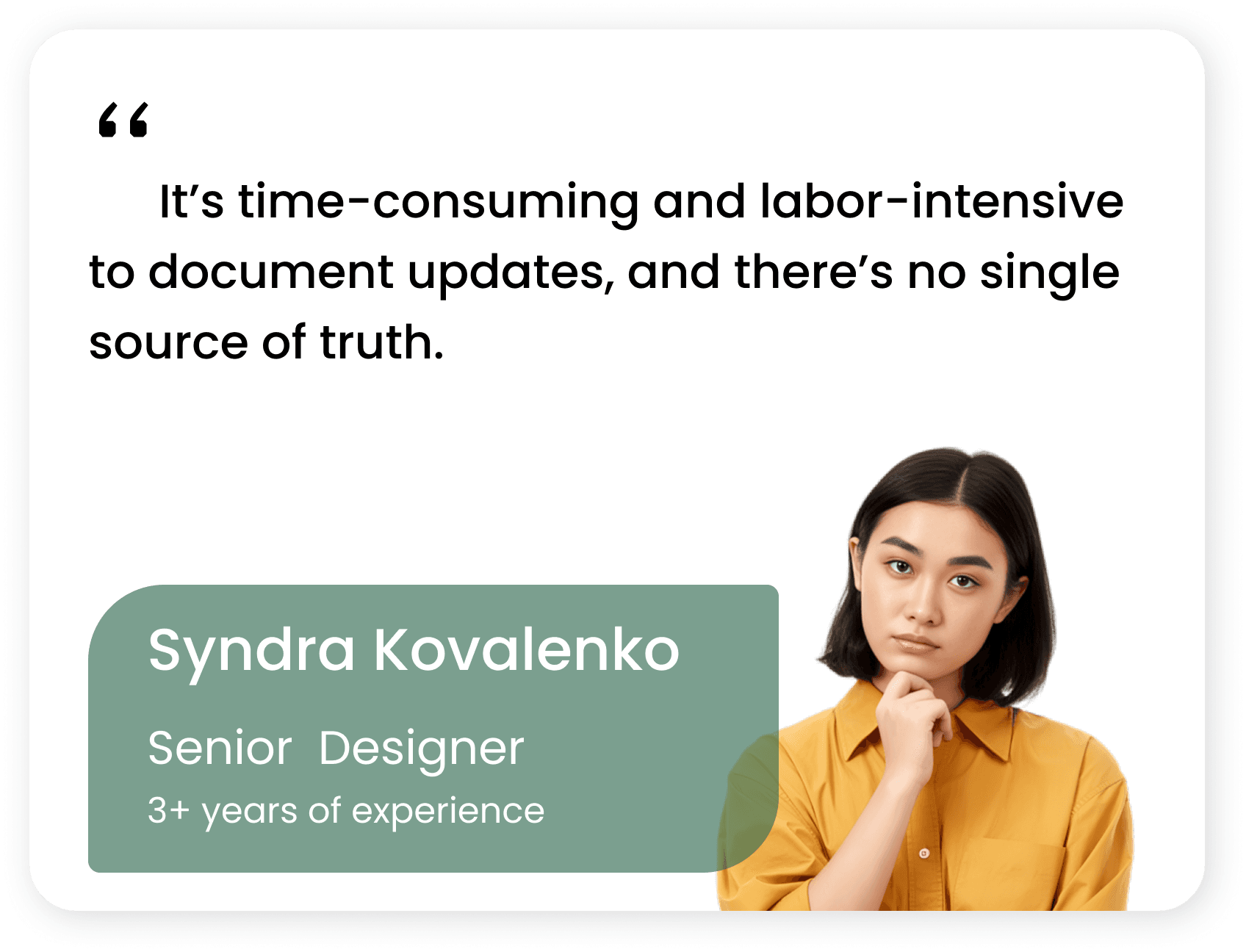
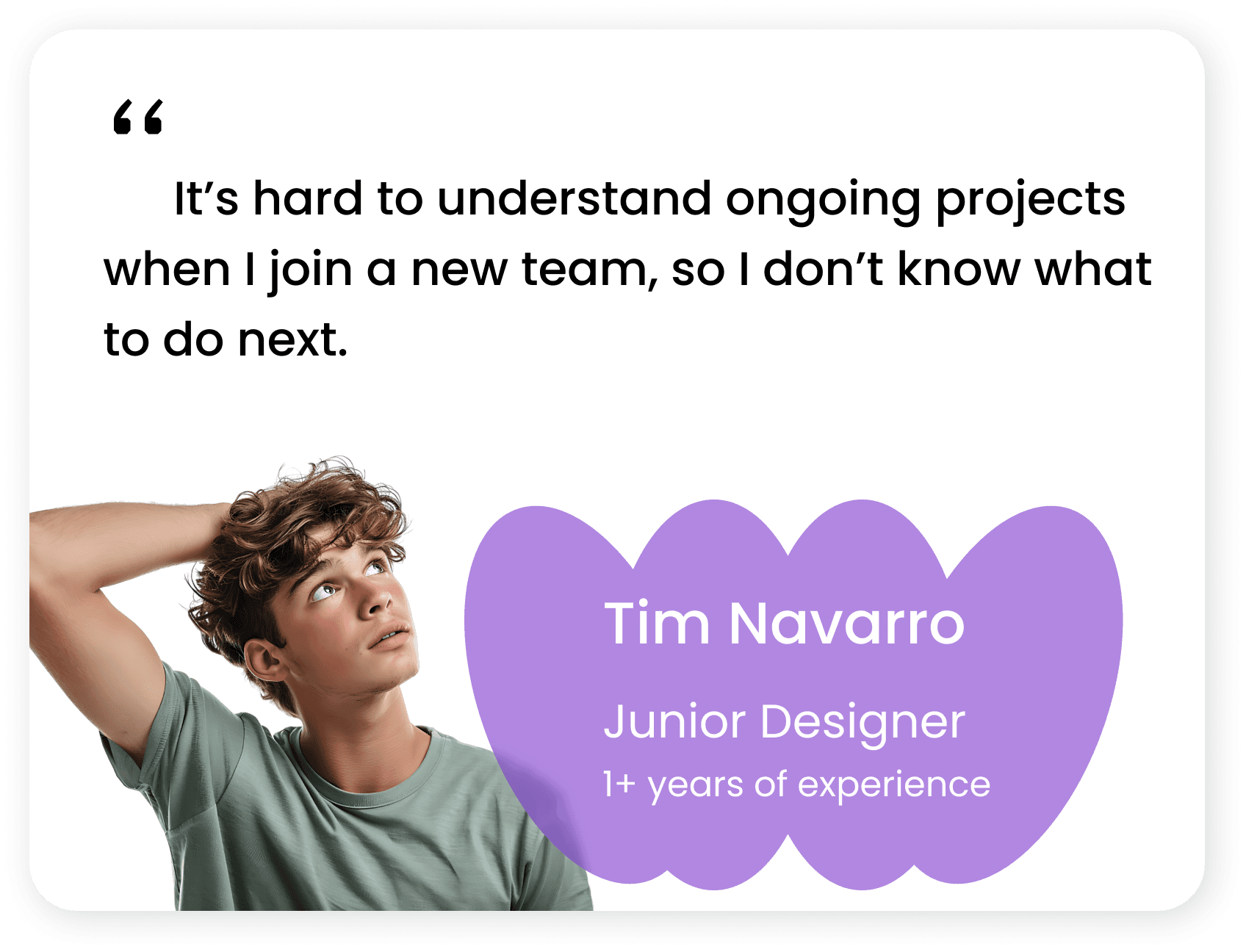
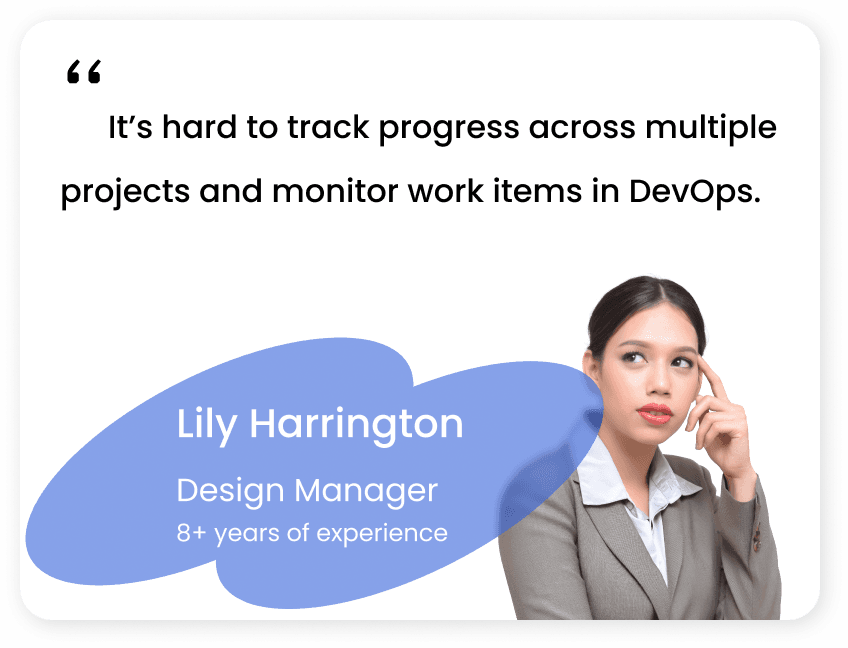
Key Insights
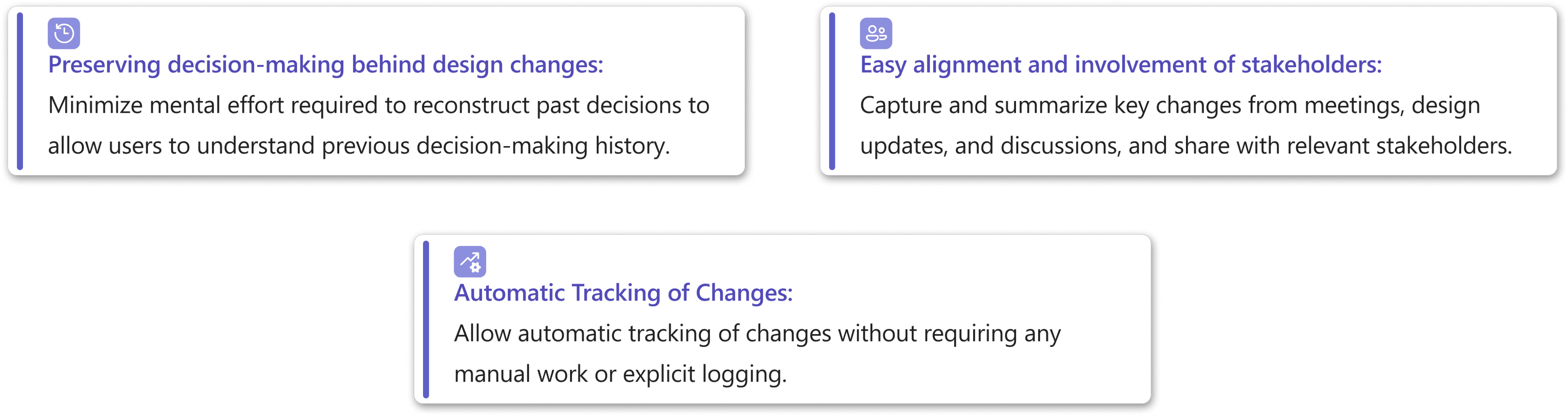
Design Requirements
And based on our research findings, our team developed the following design requirements to guide our design process and evaluate the impact of our final solution:
What I learned
Over the course of the project, I gained hands-on experience conducting end-to-end design for a Copilot-powered solution. My key learnings can be grouped into three areas: designing for AI, working with the Fluent Design System, and translating designs into functional engineering solutions:
Updated April 2026, made with love.

Think in Systems
Design with Intention
Craft with Heart